
How to Set up Ultra Hd Projector: A Practical Guide
Set up an ultra HD projector with confidence: distance, keystone, HDMI settings, and 4K checks. Updated October 2026 for how to set up ultra hd projector.
 By Marcus Bell
Updated
By Marcus Bell
Updated

A projector box that says 4K can still deliver a plain 1080p picture if the cable, the source settings, or the projector’s own panel aren’t up to the job. That’s why setting up an ultra HD projector is part placement and part signal checking. If you’re working through how to set up ultra hd projector, the early steps look like any projector setup: pick the screen size, measure the distance, and level the image. The extra work comes afterward, when you confirm that the projector is actually receiving and showing the resolution you expected.
This guide uses general setup practice and the product listings, not hands-on testing. It pays special attention to the difference between a projector that accepts a 4K signal and one whose imaging panel is natively 4K, because the listings here make that distinction easy to miss. The sections below cover distance and screen size, automatic adjustments, power, streaming, HDMI and HDR settings, brightness, and a final check.
| Award | Product | Best Projector Reviews Score About Best Projector Reviews ScoreBest Projector Reviews Score is a comparison aid based on available product information, not a hands-on testing result. Read our review methods. | |
|---|---|---|---|
| Best Overall |
 Yaber T1 Pro2 Mini Projector with WiFi
|
8.3/10 | Buy |
| Best Budget |
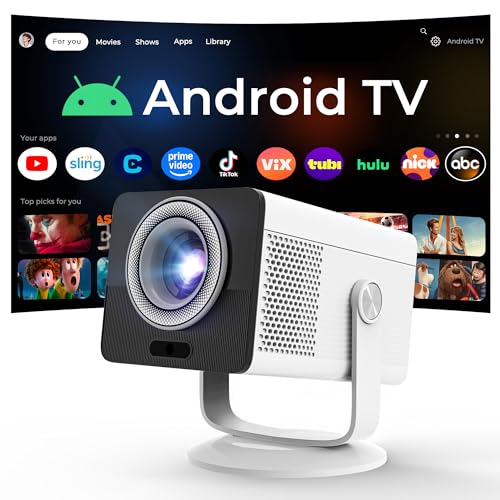 HP Projector Built-in Apps
|
7.8/10 | Buy |
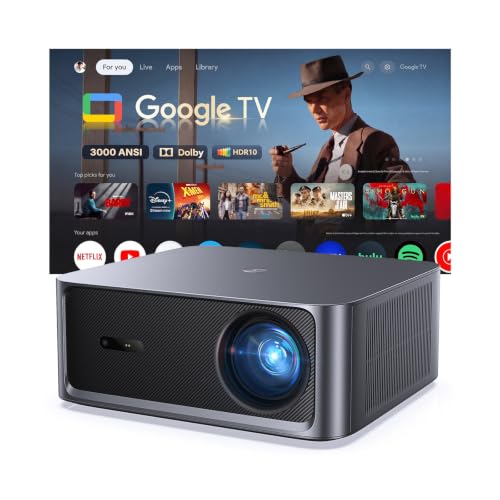 HAPPRUN 3000 ANSI Outdoor Projector with Google
|
7.8/10 | Buy |
Setting Up an Ultra HD Projector, From Placement to a Verified 4K Signal
An ultra HD projector setup works when the screen size matches the throw distance, the image is square and sharp, and the source device really sends a 4K signal over the right cable and port. Missing any one of those can leave you with a soft or dim picture and no obvious cause. The sections below follow the order that saves the most time.
What Ultra HD Should Mean for Your Setup
Ultra HD usually means a 3840 by 2160 picture, often called 4K. A projector can accept that signal without having a panel that natively shows that many pixels, and some use shifting or scaling to approximate it. The product listing should say which one applies.
The listings here are a good example. The Yaber T1 Pro2 Mini Projector with WiFi listing says native 1080 FHD with HDR10. The HAPPRUN 3000 ANSI Outdoor Projector with Google listing says 4K HDR supported and native 1080P. The HP Projector Built-in Apps listing says native 1280 by 720 and 1080P/4K supported.
None of those listings claims native 4K. They describe 4K input or support, which means the projector can take that signal and scale it to the panel it has. That can still be a useful feature, but it isn’t the same as native 4K detail, so set your expectations by the native resolution in each listing.
Start With Screen Size and Throw Distance
The throw ratio links the distance from the lens to the screen with the width of the image. Divide the distance by the ratio to find the image width, or multiply the width by the ratio to find the distance. Your manual lists the ratio or a table of sizes and distances.
The HP listing gives a worked example. It states a 0.9:1 short-throw ratio, a 40 to 100 inch screen range, and an 80 inch image from 1.6 meters. The math works out, since an 80 inch 16:9 screen is a little under 1.8 meters wide, and 0.9 times that is about 1.6 meters.
The HAPPRUN listing says the screen can reach up to 300 inches, and the Yaber listing doesn’t state a throw ratio in the data. That doesn’t mean you can fill a 300 inch screen in your living room. Brightness spreads thinner as the image grows, so a smaller screen is often the better setting in a room with any light.
Place the Unit, Then Let the Automatic Adjustments Do the First Pass
Set the projector on a stable table, shelf, or mount, centered on the screen and square to it. All three listings mention automatic features. The Yaber listing mentions autofocus, keystone correction, screen alignment, and obstacle avoidance, and it recommends keeping the projection angle within 20 degrees for best results.
The HP listing mentions four-point auto keystone, remote-controlled electronic focus, and a 90 degree rotating design. The HAPPRUN listing mentions AI autofocus and automatic screen alignment. These are manufacturer descriptions, and the quality of the result will depend on your wall, the angle, and the lighting.
Automatic keystone correction reshapes the image digitally, which can soften fine detail, so place the projector as square to the screen as you can. Then let the auto routine run and check the edges and corners. Adjust by hand if the picture isn’t straight, using the focus and keystone controls in the menu.
Power and Ventilation
Plug the projector into a wall outlet using the supplied power supply, and keep the vents clear. The HP listing describes USB-C power input and says it needs a power bank rated at 65W or higher, noting that smaller power banks can’t supply enough power to run it. If you plan to run it outdoors, confirm that your power bank matches that requirement.
Allow room around the projector for air to move, especially at the vents. Don’t set it on a bed or cushion, and don’t cover it while it runs. After a viewing session, let it cool down according to the manual before you pack it up.
If you mount the projector on a ceiling, use the hardware the manufacturer specifies and make sure it is rated for the weight. For ceiling work, a qualified installer is a safer choice. And don’t look into the lens while the projector is on.
Network, Streaming Apps, and Accounts
Smart projectors need a network setup before apps work. The HAPPRUN listing mentions Google TV with apps such as Netflix, Prime Video, YouTube, and Hulu, and the HP listing mentions an Android TV OS with Netflix, Prime Video, YouTube, Disney+, and Tubi. The Yaber listing says Netflix, YouTube, and Prime Video come preinstalled.
Join the projector to your Wi-Fi network through its settings menu, sign in to your accounts, and check that each app plays a video. Streaming apps may limit the resolution they send to a given device, so a service may stream at 1080p even if the projector accepts 4K. That depends on the app, the account plan, and the device’s certification, none of which the listings explain.
The listings mention Wi-Fi 6 and Bluetooth, which are manufacturer statements about connectivity. A strong router signal matters more than the label. If a stream buffers, move the router closer, or use a wired source.
Getting a True 4K HDR Signal From an External Device
If you connect a streaming stick, game console, or Blu-ray player, use a High Speed HDMI cable, or a cable labeled for 4K, and connect it to the projector’s HDMI port. Check your manual to see whether specific ports support 4K or HDR. Then open the source device’s video settings and set the output to the highest resolution the projector accepts.
HDR needs both ends to cooperate. The Yaber listing mentions HDR10, and the HAPPRUN listing mentions HDR10+. If the source sends HDR and the picture looks washed out or too dark, try turning HDR off on the source or switching the projector to an HDR picture mode.
To confirm the signal, look for an information display on the projector or the source device that shows resolution and format. If it reports 1080p, check the cable, the port, and the source’s output setting. A cable that is too long or poorly shielded can limit the signal.
Brightness, Room Light, and Picture Modes
The listings use different brightness figures. The HAPPRUN listing states 3000 ANSI lumens, the HP listing states 150 ISO lumens, and the Yaber data here doesn’t list a brightness figure. These numbers are manufacturer claims, and the test methods are not identical, so don’t compare them as if they were measured on the same basis.
A brighter projector can show a clearer image in a lit room, but it can also cost more in power and fan noise. For a dark room, a lower brightness mode often looks better and runs quieter. Pick a cinema or movie mode for dim rooms and a brighter preset when there is light around.
Screens matter too. A flat, white, matte surface gives a cleaner image than a textured wall. If ambient light is a problem, close the curtains before you adjust anything else.
Gaming and Motion Settings
Fast games and sports put different demands on a projector than movies do. The HAPPRUN listing mentions motion compensation, which smooths movement but can add processing delay, so turn it off or choose a game mode when responsiveness matters. The Yaber listing mentions pairing Bluetooth game controllers, though none of the listings gives an input lag figure.
Since no input lag data is supplied, don’t assume any of these projectors suits competitive gaming. Test it with your own console or computer, and judge whether the delay between button press and action feels acceptable. A wired HDMI connection is generally the lowest-delay option.
Fixing the Common Setup Snags
If the image is a trapezoid, move the projector closer to square and reduce the tilt before reaching for keystone correction. If it’s blurry in one corner, the projector may not be level or the wall may be uneven. If it’s dim, check the picture mode, the room light, and the screen size.
If the apps won’t load, check the Wi-Fi connection, the date and time settings, and whether the app needs an update. If an external device shows no signal, confirm the input, reseat the cable, and try another HDMI port. Restarting the projector and the source often clears a stubborn handshake problem.
Fan noise that seems higher than expected can mean blocked vents or a high-brightness mode. Move the projector to open space and try a lower brightness setting. If the unit shuts off by itself, let it cool, clear the vents, and consult the manual instead of opening the case.
Sound, Bluetooth, and Final Checks
Built-in speakers vary. The Yaber listing mentions an 8W speaker with Dolby Audio, the HAPPRUN listing mentions dual 10W speakers with Dolby Audio, and the HP listing mentions dual stereo speakers. Bluetooth is listed on all three, which can connect headphones or a soundbar.
Before the first movie night, run a final check. View a still image to check focus across the screen, play a video to check motion, and listen for fan noise during a quiet scene. Confirm the resolution readout, and check the corners for color or brightness changes.
The best setup balances size, brightness, and signal. If the picture is dim, reduce the screen size or room light. If the picture is soft, check focus, keystone, and the resolution the source is sending. Once those pass, the rest is just enjoying the show.
About the author
Most projector frustration is a setup problem: wrong throw distance, a bracket in the wrong spot, a cable that will not carry the signal. I write step by step guides for mounting, placement, connecting laptops, phones, and streaming sticks, and getting a straight, sharp picture. I like checklists and I try to say what to measure before you drill anything. My notes follow the site's review methods: research-based comparison, not lab testing.