
How to Use Phone as Projector? Mirroring and Lens Options
Learn how to use phone as projector with a mini projector, an adapter, or a simple lens stand, plus tips for a sharper picture. Updated for October 2026.
 By Marcus Bell
Updated
By Marcus Bell
Updated

A phone screen is great for one or two people, but a bedroom wall can turn the same video into a small movie night. The catch is that a phone cannot project an image by itself. You need either a real projector that accepts the phone’s signal, or a simple lens stand that enlarges the screen.
This guide explains how to use phone as projector setups in three ways: wireless mirroring to a mini projector, a wired connection with an adapter, and a passive phone-stand lens. The products include examples of each. Along the way, you’ll learn why a dark room matters, what causes black screens with streaming apps, and how to keep the picture sharp. Each method suits a different room and budget, so you can pick the one that matches how you watch. A few phone settings help every method work better, and they take only a minute to change.
| Award | Product | Best Projector Reviews Score About Best Projector Reviews ScoreBest Projector Reviews Score is a comparison aid based on available product information, not a hands-on testing result. Read our review methods. | |
|---|---|---|---|
| Best Overall |
 CAMWORLD Mini Portable Projector with Battery,WiFi
|
8.8/10 | Buy |
| Best Budget |
 Mini Projector, HD 1080P WiFi Video Projector
|
8.6/10 | Buy |
 Smartphone Projector
|
8.4/10 | Buy | |
| Best Premium |
 Mini Projector,1080P Support Portable Projector
|
8.3/10 | Buy |
 Mini Projector, HD 1080P WiFi Video Projector
|
8.1/10 | Buy |
Turning a Phone Screen Into a Wall-Sized Picture
The short answer: pair your phone with a projector that can receive its picture, either wirelessly or by cable, or use a lens-style stand that magnifies the phone’s own screen. Mini projectors give the brightest, largest result, while lens stands are the cheapest and simplest. Which one fits depends on room light, picture size, and how much setup you want to do.
Each approach has trade-offs. Wireless is neat but depends on a stable link and the phone’s support. Wired is steady but needs the right adapter. A lens stand needs a very dark room and gives a small picture.
Wireless mirroring to a mini projector
Wireless mirroring sends the phone’s screen to the projector over Wi-Fi. The CAMWORLD Mini Portable Projector with Battery,WiFi listing describes dual-band WiFi 6 for mirroring from iPhone, Android phones, and tablets. It also lists a built-in rechargeable battery, with up to three hours in energy-saving mode or 60 minutes at full brightness.
The setup is usually simple. Turn on the projector, open its screen-mirroring or casting mode, and then use your phone’s cast or screen mirroring option to pick the projector. Check the projector’s manual, because each brand names the feature differently, and Android and iPhone use different options.
Wireless mirroring is convenient for photos, slides, and videos stored on the phone. It adds a small delay, which doesn’t matter for a slideshow but can matter for games. Keep the phone near the projector to maintain a steady link.
Why streaming apps can show a black screen
Two mini projector listings include a note about HDCP, a copy-protection system. They say that screen mirroring doesn’t work, with no image or sound, for some apps such as Hulu. The listing suggests playing those videos through a TV stick or Chromecast plugged into the projector, or connecting a laptop by HDMI.
This restriction applies to many wireless mirroring setups and isn’t a sign that your phone or projector is broken. Local videos, photos, YouTube, and slides tend to work. If you mostly watch subscription streaming, a projector with built-in apps or a plugged-in stick is a smoother plan.
Wired connection with an adapter or cable
A wired link doesn’t depend on Wi-Fi, so it avoids many dropouts. The Polaring listing for the Mini Projector,1080P Support Portable Projector mentions HDMI, USB, Type-C, and TF card ports. It also says that for an iPhone, an HDMI adapter is required.
The steps are the same as for a laptop. Connect the adapter to the phone, run an HDMI cable to the projector, and select the HDMI input. Make sure the adapter is listed for your phone’s port type, since Lightning and USB-C phones need different parts.
Not every Android phone can output video over USB-C. If your phone doesn’t support it, a wireless method or a different adapter may be needed. Check the phone’s specifications or manual before buying.
The phone-stand lens projector
The Smartphone Projector listing describes a simple device where you insert the phone and turn a dial magnifier to focus. It says no batteries or wires are needed, and that the phone’s brightness must be turned to 100 percent. It also warns that it may not have the brightness or resolution of an actual projector and is ideal for pitch-black dark rooms.
The listing states an image size of 600 by 337.5 millimeters, which is a small picture. That’s closer to a large tablet screen than a cinema wall. These lens stands fit a child’s night-time viewing or a quick demonstration, but not a living room movie night.
Because the phone’s screen is the only light source, the room has to be nearly dark. Expect a dim image if there is any ambient light. Raise the phone’s brightness, and keep the lens clean for the best picture.
Brightness, resolution, and what the numbers mean
Mini projector listings tend to use big numbers. The Polaring listing mentions a 15,000 lumens light source, but it also states 300 ANSI lumens, which is the more comparable measure. The CAMWORLD listing mentions 300 ANSI lumens as well, with a 720P native resolution and 4K decoding support.
Native resolution is what the projector actually draws, while “supported” means it can accept a signal at a higher resolution and scale it down. A 720P native projector can accept a 1080P or 4K signal, but the image will not have more detail than the panel provides. For a small bedroom screen, that is often fine.
ANSI lumens relate to how well the projector handles light in the room. Lower numbers in the hundreds mean the image is best in a dark room. The Polaring listing also says it works best in dim settings, and big marketing numbers should not be read as daylight performance.
Pocket-size mini projectors with a tripod
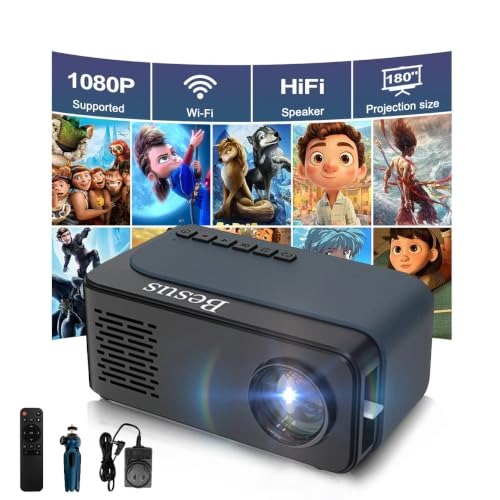
Two listings in the group describe a compact WiFi mini projector with a mini stand. The Mini Projector, HD 1080P WiFi Video Projector and the Mini Projector, HD 1080P WiFi Video Projector share the same description: about 5 by 3.2 by 1.9 inches, 0.6 pounds, built-in speakers, and 1080P support.
That size makes them easy to toss into a bag for a trip or a sleepover. The listing suggests using them in a dark environment for the best results, and it notes that an HDMI connection is included for laptops. A tripod stand lets you aim the image without stacking books under the unit.
Small projectors like these can’t match a large home theater model in brightness. They work best on a plain wall at a modest picture size in a dim room. If you expect a daytime picture, set expectations lower or choose a brighter model.
Picture size and placement
Distance controls image size. The Polaring listing says it projects 35 to 170 inches from about 1.46 to 5 meters away. The other mini projector listing mentions a tripod stand, and the CAMWORLD listing mentions a rotatable base and auto vertical keystone with manual focus.
Keystone correction squares an image that’s projected at an angle. The Polaring listing describes manual keystone, while the CAMWORLD listing describes auto vertical keystone. Placing the projector level and square to the wall still gives the cleanest picture.
Test the focus with something that has small text, like a settings menu or a web page. Video can hide a soft focus, but text shows it at once. Adjust the focus ring or the remote control until the letters look crisp from where people will sit.
Choose a plain, light wall or a screen. Textured walls and dark paint dull the picture. A cheap pull-down screen can make a big difference in a small room.
Choosing by situation
For travel and camping, the CAMWORLD battery projector is the one with a built-in battery in the data. Its listing also allows DC power for indoor use. For kids’ rooms or gifts, the compact mini projectors with tripods and 1080P support may appeal, but read the HDCP note first.
For the simplest budget experiment, the lens stand will show you what a bigger phone picture feels like. For a regular movie setup, a mini projector with mirroring or an adapter is the more capable choice. Match the tool to the room and the content you watch.
Phone settings that make the picture better
Turn off auto-lock or set a long screen timeout so the phone doesn’t go dark halfway through a movie. Switch on Do Not Disturb to keep notifications off the wall. Rotate the phone to landscape before you start, since portrait video leaves wide black bars.
Close background apps to keep wireless mirroring smoother, and update the phone’s software if the projector can’t find it. If you use a lens stand, raise the phone’s brightness to the maximum and remove screen protectors that add glare. These small steps cost nothing and often fix a picture that looks poor.
Sound, eyes, and power
Phone speakers are small, and the sound from a mini projector’s speaker may still be modest. Several listings mention built-in speakers or Bluetooth, and a separate speaker is an easy upgrade. Some projectors also have an audio output jack, which helps in a larger room.
Never look into the projector’s lens while it’s on, and make sure children understand the same rule. Place the projector where nobody will walk through the beam. The lens is bright even on a small unit, and the listings’ eye-care claims are not a reason to stare into it.
Check the power source as well. Battery models like the CAMWORLD last for a limited time at full brightness, so plug in for a long movie. Use the cable and adapter that came with the projector, and keep the cable out of walkways.
Fixing common problems
If the projector doesn’t find your phone, check that both are in mirroring mode and on compatible networks. Restart the projector’s casting mode, then try again. If audio is missing, raise the volume on both devices.
If the image looks blurry, adjust focus and check the distance to the wall. If it looks like a trapezoid, level the projector or use keystone. If it looks dim, close the curtains.
Keep the vents clear and don’t cover the projector while it’s running. Let it cool down before packing it, and follow the manufacturer’s guidance for the power adapter. A neat, dry run before your first movie night saves frustration.
About the author
Most projector frustration is a setup problem: wrong throw distance, a bracket in the wrong spot, a cable that will not carry the signal. I write step by step guides for mounting, placement, connecting laptops, phones, and streaming sticks, and getting a straight, sharp picture. I like checklists and I try to say what to measure before you drill anything. My notes follow the site's review methods: research-based comparison, not lab testing.