
How to Use Projector With Iphone: Casting Options Explained
Black screen or no sound? See how to use projector with iphone with wired, wireless, and built-in app options, plus streaming limits, for October 2026.
 By Marcus Bell
Updated
By Marcus Bell
Updated

You plug in the projector, tap a few things on your iPhone, and the wall stays blank. Or the photos appear but Netflix goes black. Both are common, and both usually have a simple explanation once you know how the connection actually works. Most of it comes down to which input the projector offers and whether the content is protected.
For how to use projector with iphone, there are three realistic routes: a cable to the projector’s HDMI input, a wireless receiver that plugs into that same input, or the projector’s own built-in apps. Each has tradeoffs in setup effort, picture reliability, and what content it can show. This guide relies on published specifications and manufacturer wording, and it points out where the listings stop short, such as whether a projector supports Apple’s AirPlay directly. The two products below take very different approaches to the problem, and they make a useful pair to compare.
| Award | Product | Best Projector Reviews Score About Best Projector Reviews ScoreBest Projector Reviews Score is a comparison aid based on available product information, not a hands-on testing result. Read our review methods. | |
|---|---|---|---|
| Best Overall |
 4K Wireless Display Adapter for Mirror iPhone iPad
|
8.9/10 | Buy |
| Best Value |
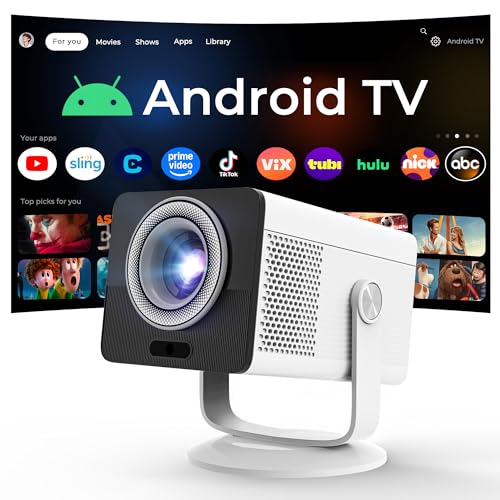 HP Projector Built-in Apps
|
7.8/10 | Buy |
Connecting an iPhone: Wired, Wireless, or Built-In Apps
An iPhone reaches a projector in one of three ways: through a cable into a wired input, through a wireless receiver that sits in that input, or through apps already built into the projector. The best choice depends on which inputs your projector has, what you want to show, and whether the content is protected. Most failed attempts come from mixing those up, such as mirroring a streaming app that blocks screen capture. The sections below work through each route in the order most people try them.
Check what the projector accepts first
Start with the back and sides of the projector. A standard HDMI input opens every route in this guide, while a model with only a USB port or a proprietary connector narrows the options. The HP Projector Built-in Apps listing names USB-C, a 3.5mm headphone jack, and HDMI ports, so it offers the usual starting point.
Next, check what the listing says about phones. The HP listing mentions streaming or screen mirroring without extra sticks, but the text doesn’t spell out AirPlay or iPhone support. That is worth confirming with the seller or manual before relying on direct wireless mirroring from an iPhone.
Finally, think about content. Home videos, photos, slides, and many apps mirror without trouble. Paid streaming apps often don’t, for reasons covered below.
The wired route: a cable adapter and HDMI
A cable is the most direct path. Apple sells digital AV adapters that convert the iPhone’s port to HDMI, and you then run a standard HDMI cable to the projector. Newer iPhones use USB-C and older ones use Lightning, so match the adapter to your model before ordering and check Apple’s compatibility notes.
Wired connections avoid Wi-Fi dropouts and are often a good choice for presentations or games, where a steady signal matters. The tradeoff is cable length and the need to keep the phone close. A phone lying beside the projector is fine, but a phone in your hand across the room isn’t.
Charging is the other wired detail. Mirroring keeps the phone’s screen on, so a long movie can drain the battery, and some adapters include a second port for power. Check the adapter’s description for that before you buy.
Select the correct HDMI input on the projector after plugging in. If the screen stays black, try a different cable or port, because adapters and cables vary in quality. Protected streaming apps may still refuse to play over a wired adapter for the same reasons they refuse wireless mirroring.
The wireless route: a receiver in the HDMI port
The second route uses a small receiver that creates its own connection to the phone. The 4K Wireless Display Adapter for Mirror iPhone iPad listing describes an iOS-only dongle for AirPlay mirroring to a TV, projector, or monitor with an HD input. It says no app, driver, or Wi-Fi connection is required.
The setup steps in the listing are short. Plug the adapter into the HD input and power it, switch the display to that input, then tap Screen Mirroring on the iPhone or iPad and pair with the adapter. The listing describes dual-band 5GHz and 2.4GHz transmission and 4K decoding.
Compatibility is stated as iPhone 5 through the iPhone 17 series and iPad Air, iPad Mini, and iPad Pro models. That is a manufacturer list, so check your exact model against it. One important caveat appears in the same listing: it mirrors non-encrypted content, and copyright-protected, DRM-encrypted content, including certain streaming services, isn’t supported.
Wireless mirroring depends on a clean signal between the phone and the receiver, so keep the phone in the same room and away from crowded networks when you can. Some delay is possible, which may be noticeable in games or fast video. That is one reason the wired route suits gaming better.
Where the adapter gets its power isn’t spelled out in the text beyond “power it,” so check the product page for the power connection. Some projectors supply USB power from a port, and some don’t. Keep a spare power source in mind before you mount anything.
The built-in route: use the projector’s own apps
The third route skips mirroring for video. If the projector has its own operating system, you can open the streaming app on the projector and sign in there. The HP listing describes Android TV OS with Netflix, Prime Video, YouTube, Disney+, and Tubi, and says no extra TV stick is required.
This route solves the black-screen problem, because the app plays natively. The iPhone isn’t needed for the video itself, and you can use it for other things. It also puts less load on the phone’s battery.
The listing also mentions a sleep timer, which is handy for bedtime viewing. Voice features and other smart functions are described in the listing, but the text doesn’t explain how they work with an iPhone. Treat the phone as optional for streaming and keep mirroring for photos, slides, and other content.
Why Netflix and similar apps often go black
Streaming services protect their video with content protection, and that protection can block screen mirroring. The result is audio with a black picture, or no picture at all, even when photos and other apps mirror correctly. It doesn’t mean the projector or adapter is broken.
The SmartSee listing explicitly says protected content isn’t supported, which fits this pattern. The best workaround is to use a streaming app on the projector itself, or plug in a streaming stick if the model has no apps. Mirroring then becomes the tool for everything else.
If a specific app mirrors on one setup but not another, the cause may be the app version, the iOS version, or the adapter’s handling of protection. Update iOS and the app first, then retry. If the problem persists, switch to the built-in route and skip the debugging.
Sizing the picture and checking the light
Once the signal works, fit the picture to the wall. The HP listing gives a 0.9:1 short-throw ratio, a 40 to 100 inch image range, and an 80-inch image from 1.6 meters. A ratio like that is useful in a dorm or small room, since the projector can sit close to the wall.
Brightness and resolution are modest on paper. The listing states 150 ISO lumens, a manufacturer rating on its own basis, and a native 1280×720 resolution with 1080P and 4K support. Support means it accepts those signals, so an iPhone’s higher-resolution output will be scaled down to the panel’s detail.
Use the room as a tool. Darken the space for the best contrast, and keep the image on the smaller end of the stated range if the room has any light. The listing also describes automatic four-point keystone correction and focus by remote, which helps with angled placement.
Orientation, notifications, and sound
Phone habits affect the picture. Hold the iPhone in landscape and turn off auto-lock for video, otherwise the image shrinks to a narrow strip or the screen goes dark mid-show. Many apps rotate automatically, but some need orientation unlocked in the control panel.
Mirroring shows everything on the phone, including notifications and messages. Turn on Do Not Disturb before a presentation or family movie night to avoid awkward pop-ups. A fully charged phone helps too, since mirroring keeps the display on and uses more power.
For sound, a wired HDMI connection or a mirroring receiver normally carries audio along with the picture, and the projector’s speakers then play it. The HP listing describes dual stereo speakers, Bluetooth 5.4, and a 3.5mm jack for external speakers or headphones. If sound comes from the phone instead, check the output selection in the control center and the projector’s volume.
Power and portability on the road
Portable use introduces its own limits. The HP listing says it accepts USB-C PD 3.0 power input and works with power banks rated 65W or higher, and that smaller banks can’t power it. Check your bank’s rating before a camping trip.
The listing gives a 40W operating power figure and describes a 90° rotating design for walls, slanted ceilings, or outdoor screens. A receiver adapter also needs power, so plan for it. Keep cords tidy and keep vents clear to avoid overheating.
Quick fixes when nothing appears
Run through the basics in order. Confirm the projector is on the correct input, then check that the cable or adapter is seated at both ends. Restart the projector and the phone, and update iOS if it is behind.
For wireless adapters, move the phone closer and remove nearby interference. If photos mirror but streaming apps don’t, you’re likely hitting content protection. If nothing works, test with another cable or HDMI input, and contact the manufacturer for hardware faults rather than opening the case.
Choosing between the two listed products
These two products solve different problems. The SmartSee adapter adds iPhone mirroring to any display with a compatible input, and it sits at the lower price tier. The HP projector is a full projector with built-in apps, a short-throw lens, and several ports, so it replaces both the projector and the stick.
If you already own a projector with HDMI, the adapter is the lighter purchase, though it won’t fix protected apps. If you’re buying a projector and mostly stream, built-in apps matter more than mirroring. Many households may end up using both: built-in apps for shows, mirroring for photos and slides.
About the author
Most projector frustration is a setup problem: wrong throw distance, a bracket in the wrong spot, a cable that will not carry the signal. I write step by step guides for mounting, placement, connecting laptops, phones, and streaming sticks, and getting a straight, sharp picture. I like checklists and I try to say what to measure before you drill anything. My notes follow the site's review methods: research-based comparison, not lab testing.