
How to Connect to Projector From Phone: Cable or Wireless
Learn how to connect to projector from phone using an adapter cable, wireless mirroring, or a phone-friendly projector for October 2026.
 By Marcus Bell
Updated
By Marcus Bell
Updated

A phone full of vacation photos, game clips, or a slideshow looks small until it lands on a big wall, and everyone in the room can finally see it. The trouble is that phones don’t all use the same port, and projectors don’t all accept the same connections. Sorting out how to connect to projector from phone starts with the phone’s connector, then the projector’s inputs, and then whether you want a cable or a wireless link. Getting those three right avoids most of the frustration, and it only takes a few minutes of checking.
The products below cover the main routes: a Lightning-to-HDMI adapter, a 3-in-1 cable for Lightning, Micro USB, and Type-C, an iOS-only wireless mirroring adapter, and two mini projectors that list phone compatibility. Their listings also contain some honest warnings about adapter requirements and protected content. This guide walks through each route in plain steps, explains what the listings say, and shows where things usually go wrong.
| Award | Product | Best Projector Reviews Score About Best Projector Reviews ScoreBest Projector Reviews Score is a comparison aid based on available product information, not a hands-on testing result. Read our review methods. | |
|---|---|---|---|
| Best Overall |
 Wireless Display Adapter iOS ONLY Screen Mirroring
|
9.2/10 | Buy |
| Best Budget |
 3 in 1 HDMI Adapter Cable
|
8.6/10 | Buy |
 KANYUNCD Lightning to HDMI Adapter,for Phone
|
8.6/10 | Buy | |
| Best Value |
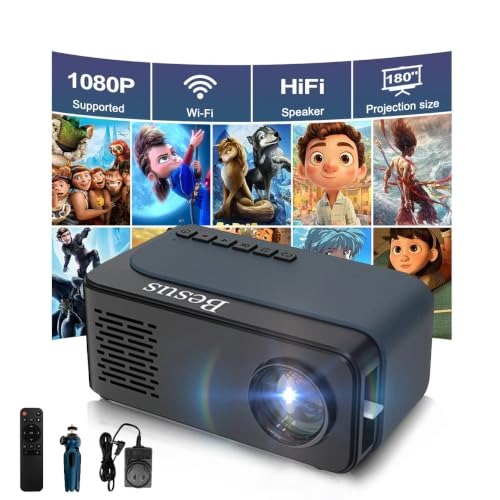 Mini Projector, HD 1080P WiFi Video Projector
|
8.6/10 | Buy |
| Best Premium |
 Mini Projector,1080P Support Portable Projector
|
8.3/10 | Buy |
Getting a Phone’s Screen Onto a Projector
There are three realistic ways to do this. A cable adapter links the phone to the projector’s HDMI input, a wireless mirroring adapter does the same job without a cable run, and a projector with its own phone-friendly features can sometimes skip the adapter step. Each route trades simplicity, cost, and flexibility differently. The right one depends mostly on which phone you own.
Whichever route you pick, the same idea applies: the phone sends its screen to a device that the projector can read. Your projector’s manual will say which inputs it accepts and how to switch between them. The product data covers the accessories and two projectors, but not your projector or your phone, so verify compatibility on your own devices before relying on any setup.
Match the Adapter to Your Phone’s Port
The charging port on the phone decides everything. Older iPhones use Lightning, many Android phones use USB-C, and some older Android phones use Micro USB. The KANYUNCD Lightning to HDMI Adapter,for Phone is listed for Lightning-port devices, and the listing specifically tells you to verify your phone has a Lightning port, not USB-C, before buying. That warning is worth taking seriously, since a wrong-port adapter simply won’t fit.
The 3 in 1 HDMI Adapter Cable tries to cover more ground. Its listing says it supports Lightning, Micro USB, and Type-C connections to HDMI-equipped TVs, monitors, and projectors, at 1080p. Even with a multi-connector cable, check the phone model’s compatibility against the listing’s list of named devices. A phone not on the list may still work, but the listing doesn’t promise it.
Android phones add a wrinkle. Whether a USB-C or Micro USB phone can output video over a cable depends on the phone, and the listings don’t settle that for any specific model. Check your phone’s specifications or manual for video output support before you buy. If the phone lacks it, a wireless route may be easier.
Wired Mirroring, Step by Step
A wired connection is the least fussy once the right parts are in hand. Plug the adapter into the phone, run an HDMI cable from the adapter to the projector if the adapter needs one, and switch the projector to the matching HDMI input. The KANYUNCD listing describes plug-and-play use with no app, Bluetooth, or Wi-Fi setup, and 1080P output at 60Hz. The 3 in 1 cable listing similarly says no Wi-Fi, driver, or app is needed.
Expect a short pause before the image appears. The 3 in 1 cable listing says to wait about 5 to 10 seconds and tap Trust when your device asks. Don’t unplug and replug repeatedly during that pause, since that can restart the process. If the phone shows a permission prompt, accept it, and the screen should appear on the projector.
Some adapters need external power. The KANYUNCD listing describes a compact cable-style design with no bulky external power module, while other adapter types may need a separate supply. Read each listing for what it says about power before you set up. If the projector shows no signal, try a different HDMI port and recheck the input selection.
Wireless Mirroring With an iOS-Only Adapter
The Wireless Display Adapter iOS ONLY Screen Mirroring is built for iPhone and iPad users who don’t want a cable running across the room. The listing says to plug it into the HDMI port of the TV or projector, connect its USB cable to a power adapter rated 5V/1A or above, and switch the display to the matching input. Once that is done, you tap Screen Mirroring on the phone to pair with it. The listing states that no app, driver, or Wi-Fi network is required.
The listing is clear about limits. It is designed exclusively for iOS, so an Android phone is outside its scope. It also says that copyright-protected and DRM-encrypted content, including certain streaming services, is not supported. A wireless adapter needs power at the projector, so the HDMI port and a nearby USB power source both have to be reachable.
The listing names a range of iPhone and iPad models as compatible. Check whether yours is on the list before you rely on it, since the data doesn’t tell you how well it works with phones outside that range. Wireless links can also be affected by interference, distance, and the room. Keep the phone close to the projector during the first try.
Projectors That List Phone Connectivity
Some mini projectors list phone use as a feature, which can simplify a trip. The SEXZCUSKT mini projector is listed as a compact WiFi projector compatible with USB, smartphone, and laptop sources, with a mini tripod included. The Mini Projector,1080P Support Portable Projector from Polaring is described as compatible with Android, iOS, and Windows, with HDMI, USB, Type-C, and TF card connections. The two listings take different approaches, so read each one for the connection method it actually names.
Read the fine print on iPhone use. The Polaring listing notes that an HDMI adapter is required to connect an iPhone, which means the projector alone doesn’t remove the adapter step. That matches the general pattern: a cable or dongle is often still needed between the phone and the projector. Treat “phone compatible” as a starting point, not a promise that nothing else is needed.
Mini projectors have their own setup chores. The Polaring listing describes manual focus and manual keystone correction, and it states an image size range of 35 to 170 inches at distances of about 1.46 to 5 meters. After the phone connection is made, you still need to place the projector at a workable distance and adjust the picture. The brightness figures in these listings are manufacturer claims, so expect a darkened room to look best.
Power and placement deserve a quick plan. Wireless dongles and mini projectors both need an outlet or a power source nearby, so check where the HDMI input and the power connection sit before you settle on a spot. A projector that sits on a shelf behind the audience needs a longer cable than one on a coffee table. Measure first, and you won’t discover a short cable after the room is dark.
When the Screen Stays Black
Black screens on streaming apps usually have a cause that has nothing to do with your cable. Many video services use copy protection, and the SEXZCUSKT listing notes that because of HDCP, mirroring from some apps can show no image or sound. The SmartSee listing says protected and DRM-encrypted content isn’t supported. These notes explain why the phone’s home screen can appear while a streaming app goes blank.
The listing’s suggested workaround is to play such content through a streaming stick plugged into the projector, or to use a laptop over HDMI. That is a legitimate way to watch, because the app runs on the streaming device instead of being mirrored. Don’t try to strip or bypass the protection, since that can violate service terms. If a specific service refuses to mirror, check its help pages for supported options.
Photos, personal videos, slides, and browsing usually mirror without protection issues, so those are the best way to confirm your connection works. Test with a photo first. If a photo shows and an app doesn’t, you’ve found a content restriction instead of a hardware fault.
Fixing No Signal, Lag, and a Sideways Picture
Start troubleshooting at the projector. Confirm the input matches the port you used, then confirm the adapter is fully seated at both ends and powered if it needs power. Restarting the adapter by unplugging and reconnecting it can clear a stalled handshake. Try a different HDMI port or cable if you have one.
If the image appears but looks cropped or stretched, check the aspect ratio and the phone’s orientation. Rotate the phone to landscape for video, and look at the projector’s picture settings for aspect options. The wired listings mention 1080p output, so very high-resolution content may be scaled. Adjust the projector’s size and focus once the picture is stable.
Lag deserves a realistic expectation. The KANYUNCD listing describes smooth 1080P at 60Hz, and the SmartSee listing describes lower-latency wireless performance, but these are manufacturer descriptions, not measured results. For fast games, a wired link is generally less likely to lag than a wireless one. Test with your actual content before an event.
Resolution is worth a small mention. The wired listings quote 1080p output, and the SmartSee listing mentions up to 4K decoding with 1080P output, while the Polaring listing describes a 1080P supported projector with a real 720P native resolution. Those figures are manufacturer statements, and what you see also depends on the phone, the content, and the projector. Choose the source quality that your projector can actually show.
Which Route Fits Your Situation
If you own an iPhone and want the simplest, most dependable link, the Lightning adapter is the straightforward choice. If you want no cable between the phone and the projector, the iOS wireless adapter fits, with the DRM limits in mind. If you have an Android phone or several device types, the 3 in 1 cable may cover more ports, as long as your phone supports video output. If you need a projector as well, a mini projector may be an all-in-one starting point, with the adapter caveat attached.
Portability matters too. The adapters are small enough to keep in a bag, and the mini projectors are described as compact. Before any presentation or trip, do a full dry run with your phone, the adapter, and the projector, so you know the steps cold. A quick test at home saves a scramble at the venue.
So the answer comes down to three checks. Confirm your phone’s port, pick the cable or wireless route that matches it, and test with a photo before you rely on a streaming app. If the picture shows up but an app stays blank, the cause is probably content protection, not your gear. With those points settled, connecting a phone to a projector is mostly a matter of plugging in and choosing the right input.
About the author
Most projector frustration is a setup problem: wrong throw distance, a bracket in the wrong spot, a cable that will not carry the signal. I write step by step guides for mounting, placement, connecting laptops, phones, and streaming sticks, and getting a straight, sharp picture. I like checklists and I try to say what to measure before you drill anything. My notes follow the site's review methods: research-based comparison, not lab testing.