
How to Connect a Projector to a Phone: Wired and Wireless
Cable or wireless? This guide to how to connect a projector to a phone covers iPhone, Android and streaming limits for October 2026.
 By Marcus Bell
Updated
By Marcus Bell
Updated

You’ve got a movie on your phone, a blank wall, and a projector that refuses to show anything but its home screen. The fix is almost always a matter of picking the right connection path for your phone, not buying a new projector. A cable, a small wireless dongle, or the projector’s own casting feature can each do the job.
This guide explains how to connect a projector to a phone in the order you’d actually troubleshoot it, starting with what your phone can output and ending with what to do when the image won’t appear. It also compares the cable adapters, wireless dongles, and phone-friendly projectors in the list, so you can see which approach fits an iPhone, an Android phone, or both. A few apps block mirroring on purpose, and that limit is worth knowing before you start. Keep your phone charged and your projector remote nearby while you test each step, since menus on small projectors can be fiddly.
| Award | Product | Best Projector Reviews Score About Best Projector Reviews ScoreBest Projector Reviews Score is a comparison aid based on available product information, not a hands-on testing result. Read our review methods. | |
|---|---|---|---|
| Best Overall |
 Wireless Display Adapter iOS ONLY Screen Mirroring
|
9.2/10 | Buy |
| Best Premium |
 4K Wireless Display Adapter for Mirror iPhone iPad
|
8.9/10 | Buy |
| Best Budget |
 3 in 1 HDMI Adapter Cable
|
8.6/10 | Buy |
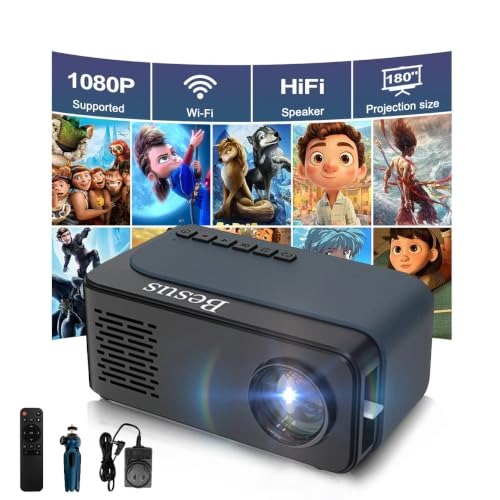 Mini Projector, HD 1080P WiFi Video Projector
|
8.6/10 | Buy | |
 Mini Movie Projector with Wired Screen Mirroring
|
8.6/10 | Buy | |
| Best Value |
 Mini Projector,1080P Support Portable Projector
|
8.3/10 | Buy |
 AINBREC Lightning to HDMI Cable Adapter for iPhone
|
8.1/10 | Buy |
Getting a Phone Picture Onto a Projector
The simplest answer is that you either plug the phone into the projector with an adapter cable, or you mirror wirelessly through the projector’s built-in casting or a plug-in receiver. Which one works depends on your phone’s port, the projector’s inputs, and the apps you want to show. Work through the steps below in order and stop when the picture appears.
Start by identifying two things: your phone’s connector and the projector’s inputs. An iPhone uses Lightning on older models and USB-C on newer ones, while many Android phones use USB-C or micro USB. The projector will list HDMI, USB, or wireless casting, and that tells you which options are open.
Deciding Between a Cable and Wireless Mirroring
A cable is the more dependable route. There’s no network to negotiate, no pairing, and no lag from a weak signal. The 3 in 1 HDMI Adapter Cable is listed as plug and play for micro USB, Type-C, and Lightning devices, with 1080P output and no hotspot, Wi-Fi, or driver needed.
Wireless is tidier when the phone needs to stay in your hand or across the room. The two SmartSee-style dongles in the list, Wireless Display Adapter iOS ONLY Screen Mirroring and 4K Wireless Display Adapter for Mirror iPhone iPad, are listed as iOS-only and say they pair by tapping Screen Mirroring on an iPhone or iPad, with no app, driver, or Wi-Fi connection needed. They plug into the projector’s HDMI port and take power over USB.
If you’re connecting an Android phone, read the compatibility notes closely. An iOS-only dongle won’t help there. For Android you’ll want a cable adapter, a projector with built-in casting that your phone supports, or a receiver that lists Android support.
Hooking Up a Phone With an HDMI Adapter
For a wired connection, plug the adapter into the phone, run an HDMI cable from the adapter to the projector, and select that HDMI input on the projector. The AINBREC Lightning to HDMI Cable Adapter for iPhone is listed as a Lightning-to-HDMI cable with a 4m length and 1080P at 60Hz output. The listing says it needs no external power, Wi-Fi, or apps.
On some adapters, the phone shows a prompt asking whether to trust the connected device. The 3 in 1 cable listing mentions tapping “Trust” and waiting a few seconds. Accept it, then give the picture a moment to appear.
Some wired adapters need the phone to support video output over its port. USB-C phones differ here, so check your phone’s specifications before you buy. If your phone can’t output video over USB-C, no cable will fix that.
Using a Projector With Built-In Wired Mirroring
A few projectors are designed to take a phone directly. The Mini Movie Projector with Wired Screen Mirroring is listed as supporting wired phone mirroring through a data cable, with HDMI, USB, Type-C, and audio ports. That means you connect the phone to the projector with a cable rather than pairing over Wi-Fi.
Check the type of cable and the phone it supports in the listing, since not every data cable carries video. Use the cable the seller names, and confirm your phone’s port type matches before you rely on it.
The Mini Projector, HD 1080P WiFi Video Projector and Mini Projector,1080P Support Portable Projector are both mini projectors that list smartphone connection and USB or HDMI inputs. Their listings differ in detail, so read what each lists for your phone type. The second one lists manual focus and manual keystone correction, which matters when you set the image up.
Mirroring an iPhone Wirelessly With a Dongle
Plug the dongle into the projector’s HDMI port, power it over USB, and switch the projector to that HDMI input. The dongle’s screen should show setup information. On the iPhone, open Control Center and tap Screen Mirroring, then pick the dongle from the list.
The listings for the two SmartSee-style dongles say they work without an app or Wi-Fi network, and one mentions a 5V/1A or higher power adapter. Use a USB power source that meets that requirement, because an underpowered port is a common cause of dropouts.
If the dongle doesn’t show up, move the phone closer, make sure no other device holds the connection, and restart the dongle by unplugging it. Wireless dongles also need the projector’s HDMI input to be stable, so test with another input if the screen goes dark.
Casting to a Smart Projector or Receiver for Android
Android phones commonly use a casting feature, often called Cast, Smart View, or screen mirroring. Open the quick settings panel, tap the casting option, and pick the projector or receiver. The projector must support that casting standard, so check its listing for the protocol your phone uses.
Not every phone and projector pair will connect. Some receivers explicitly list unsupported models, so read those notes before buying. If your phone has no built-in casting, a wired adapter is the more reliable alternative.
Phones and projectors on the same Wi-Fi network usually find each other more easily. If you’re on the road, a mobile hotspot from a second device can sometimes provide the network. That depends on the specific projector, so check its manual.
Why Netflix and Other Apps Show a Black Screen
Copy-protected streaming apps often refuse to mirror over a cable or a dongle. The Lightning adapter listing says HDCP-protected apps such as Netflix, Prime Video, and HBO are restricted by Apple’s copyright policy, and notes the limit applies to Lightning-to-HDMI cables generally. The SmartSee-style receiver in the list also notes that encrypted apps won’t mirror.
That’s a limit of the app and the phone, not a fault in the adapter. If you see a black screen with audio only, try a non-protected source, such as local video or photos. For protected apps, use a projector with built-in apps, such as a smart model, or a streaming stick plugged into the projector.
This is the biggest reason people think a connection failed when it actually succeeded. Test with your gallery first. If photos appear, the link is working and the app is what’s blocking the picture.
Running Through a Quick Checklist When Nothing Appears
Most failed connections come down to a short list of causes. Work through them in order instead of changing several things at once, so you know which change fixed the problem.
First, confirm the projector is on the right input, since HDMI 1 and HDMI 2 look identical until you switch. Second, reseat every cable and check that the adapter is fully pressed in. Third, try a different HDMI cable or port if you have one, because a worn cable can fail while looking fine.
Then restart the phone and the projector, and try the connection again with a simple source such as a photo. If a wireless dongle is involved, power-cycle it too. When a wired adapter still shows nothing, test it on a TV to learn whether the adapter or the projector is the problem.
Picture, Sound, and Orientation Fixes
If the picture appears but looks stretched or tiny, rotate the phone to landscape and use the video player’s full-screen mode. The projector’s keystone and focus controls handle the rest. The mini projectors in the list differ on this, with one listing manual keystone correction and another listing a tripod for steadier placement.
Sound sometimes plays from the phone instead of the projector. Check the output settings, turn up the projector volume, and look for a 3.5mm or Bluetooth option if the built-in speaker is weak. Projectors with a speaker may route audio through HDMI automatically, but that depends on the model.
Resolution matters, too. Several listings mention 1080P support, but one notes that its native panel is lower and 1080P is accepted as an input signal. Supported input is not the same as native resolution, so expect a softer picture on small projectors, especially on a big wall.
Cable Length, Power, and Placement
Cable choice affects how you set the room up. A long cable lets the phone stay near the couch while the projector sits across the room, but it can limit where you can put the phone without tugging the connector. A short cable keeps the setup neat when the phone rests beside the projector on a table.
Wireless dongles need power near the projector, so plan for an outlet or a USB port close to the HDMI input. Projectors with a built-in USB port may power a dongle directly, though the data doesn’t confirm this for every listed model, so check the manual. Keep the dongle’s cable from hanging under tension, which can pull it loose during a movie.
Phone battery drains faster during mirroring, especially with the screen on. Plug the phone in if the film is long, using a charging cable that doesn’t interfere with the video adapter. Some adapters have no pass-through charging, so check the listing before you count on it.
Choosing the Setup That Fits Your Phone
If you own an iPhone and want a quick, cable-free setup, a wireless iOS dongle is the most direct fit from the list. If you want the least troubleshooting, a Lightning or Type-C to HDMI cable is the safer pick. For Android, favor a cable or a receiver that names Android support.
A projector with phone mirroring built in saves the extra adapter but ties you to that projector’s list of supported phones. Cable length is another point: a longer cable gives you placement room, while a short one keeps things tidy near the projector.
Before you buy anything, confirm three things: your phone’s port, the projector’s inputs, and the app you most want to show. If those match, the connection is usually a two-minute job. If a protected streaming app is the goal, plan for a projector with its own apps instead.
About the author
Most projector frustration is a setup problem: wrong throw distance, a bracket in the wrong spot, a cable that will not carry the signal. I write step by step guides for mounting, placement, connecting laptops, phones, and streaming sticks, and getting a straight, sharp picture. I like checklists and I try to say what to measure before you drill anything. My notes follow the site's review methods: research-based comparison, not lab testing.