
How to Connect Your Phone to a Projector? Simple Setup
How To Connect Your Phone To A Projector with a cable or wireless adapter. Compare ways to mirror your screen in October 2026.
 By Marcus Bell
Updated
By Marcus Bell
Updated

Your phone has the movie, the photos, or the slides, and the projector has the big wall. Joining the two should be easy, but a mismatched port, a missing adapter, or a mirroring option that never shows up can stall a movie night before it starts. Working out how to connect your phone to a projector mostly means choosing between a cable and a wireless link, then matching your phone’s connector to what the projector accepts. Get that pairing right and the rest takes minutes.
This guide is based on published specifications and manufacturer listings, not hands-on trials. It covers wired adapters, wireless display dongles, and projectors with built-in wireless features, using the options supplied below as examples. Each route trades simplicity, delay, and compatibility differently, so the goal here is to help you pick the one that fits your phone, your projector, and the room you’re setting up. Plan for an extra few minutes the first time you try any of them.
| Award | Product | Best Projector Reviews Score About Best Projector Reviews ScoreBest Projector Reviews Score is a comparison aid based on available product information, not a hands-on testing result. Read our review methods. | |
|---|---|---|---|
| Best Overall |
 Wireless Display Adapter iOS ONLY Screen Mirroring
|
9.2/10 | Buy |
| Best Value |
 Mini Projector,1080P Support Portable Projector
|
8.3/10 | Buy |
 3 in 1 HDMI Adapter Cable
|
8.6/10 | Buy | |
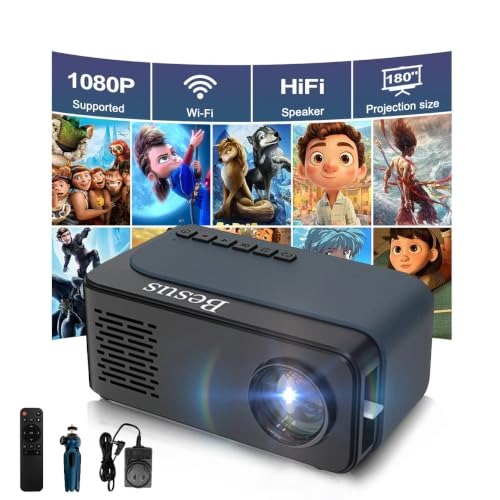 Mini Projector, HD 1080P WiFi Video Projector
|
8.6/10 | Buy | |
| Best Budget |
 XEME 4K Wireless HDMI Display Dongle Adapter
|
8.9/10 | Buy |
 Mini Projector with WiFi and Bluetooth
|
8.1/10 | Buy | |
| Best Premium |
 4K Wireless HDMI Display Dongle Adapter
|
9.2/10 | Buy |
 Mini Projector, HD 1080P WiFi Video Projector
|
8.1/10 | Buy |
Connecting a Phone to a Projector: Cable, Dongle, or Built-In Wireless
There are three ways to do it. A cable adapter plugs your phone into the projector’s HDMI input and mirrors the screen. A wireless dongle plugs into that HDMI input and receives a mirrored signal over Wi-Fi. Or a projector with built-in wireless can connect to your phone directly. Wired is the simplest to troubleshoot, while wireless trades cables for setup steps.
Wired: a phone-to-HDMI cable
The 3 in 1 HDMI Adapter Cable is the wired example here. Its listing describes one cable with Lightning, Micro USB, and Type-C ends for mirroring a phone or tablet to an HDMI display, TV, monitor, or projector. It’s described as plug and play, with no personal hotspot, Wi-Fi connection, driver, or app, and it supports 1080p output.
Setup follows a pattern. Plug the phone-side connector into the phone, plug the HDMI end into the projector’s HDMI input, and select that input on the projector. The listing says to wait about 5 to 10 seconds and tap Trust on your device so the connection can establish. Then your phone’s screen should appear on the wall.
Compatibility is the catch. The connector has to match your phone, and the phone has to support video output over that port. The listing names several phone and tablet models as working, but your own model is what counts, so look for it before you order. Don’t assume every USB-C phone can output video.
Wireless dongles: an HDMI receiver on the projector
The XEME 4K Wireless HDMI Display Dongle Adapter plugs into the projector’s HDMI port and receives a wireless signal from your phone. Its listing describes dual-band 2.4G and 5G Wi-Fi, plug and play operation without a driver or app, and options for switching between screen modes. It also notes that a charging plug isn’t included, which is easy to overlook, since the dongle needs power.
The listing mentions setup details for connecting the receiver to a router, so read them before you start. In practice, wireless adapters usually need the dongle powered, the projector on the correct input, and your phone joined to the dongle’s network or the right network. If the steps look unfamiliar, work through them once at home before relying on them at an event.
The SmartSee Wireless Display Adapter, which is listed for iPhone and iPad only, takes a different approach. Its listing says you plug it into the HDMI port, power it from a USB adapter rated at 5V and 1A or above, switch the display to that input, then tap Screen Mirroring on the Apple device. It says no app, driver, or Wi-Fi network is required. Because it’s labeled iOS only, Android phones are not its target.
Projectors with built-in wireless features
Some projectors skip the dongle altogether. The VISSPL mini projector’s listing mentions Wi-Fi 6 and Bluetooth 5.2, says it can connect to a smartphone and laptop, and notes Bluetooth pairing for speakers and headphones. The SEXZCUSKT and AudonMax mini projectors are described as Wi-Fi projectors with a tripod and built-in speakers.
The Polaring mini projector’s listing mentions support for synchronizing a smartphone screen. It describes a native 720p panel with 1080p input supported, which is a useful distinction: input support is not the same as panel resolution. Native resolution tells you how many pixels the projector actually has, so a 1080p input still gets scaled down on a 720p panel.
Built-in wireless is convenient, but the quality of the connection depends on the projector’s software and your phone’s operating system. Listings rarely spell out which phone models or mirroring protocols work, so treat compatibility as something to verify before depending on it.
Which route fits which phone
An iPhone or iPad can use a Lightning-capable cable, an iOS-focused wireless adapter, or a projector with an Apple mirroring feature, if it lists one. The iOS-only dongle in this group is built around that case. An Android phone is better served by a USB-C video cable if the port supports it, or a wireless dongle that lists Android support.
Older phones with a Micro USB port are a special case. The 3 in 1 cable lists a Micro USB end, but many Micro USB phones needed specific video-output standards to work. Check your phone’s documentation instead of guessing.
If you switch between phones often, such as a household with both iPhones and Android devices, a wireless dongle that lists broad support may save you from carrying several cables. A dedicated iOS dongle is simpler, though less flexible.
Power, ports, and the projector’s side of the setup
Every dongle and cable plugs into something on the projector, and the projector needs a free HDMI input to accept it. Many small projectors have only one HDMI port, so if it’s already occupied by a streaming stick or game console, you’ll need to swap or use a switch. Check your projector’s inputs before you buy an adapter.
Wireless dongles need power, usually from a USB port or a wall adapter. The XEME listing notes that a charging plug is not included, and the iOS dongle’s listing calls for a power adapter rated at 5V and 1A or above. A weak power source is a classic reason for a dongle that restarts or won’t connect.
If the projector has a USB port that supplies power, plugging the dongle into it can keep the setup tidy. Not every projector’s USB port provides enough power for this, so keep a wall adapter handy as a fallback.
What resolution you actually get
A phone can output a sharp picture, but the projector’s own panel sets the ceiling. The cable and dongle listings mention 1080p and 4K output, which describes what the adapter can pass along. The projector then scales that signal to its own native panel resolution.
The Polaring listing is a good illustration, since it describes a native 720p panel while saying 1080p input is supported. Many small projectors work this way. The picture is still watchable, especially at modest screen sizes, but fine text and detail will look softer than the input resolution implies.
Don’t pay extra for a 4K dongle if the projector behind it is a mini model with a lower native resolution. The dongle’s ceiling isn’t the bottleneck.
Brightness, size, and room conditions for phone projection
Phone content often means casual viewing in a bedroom, living room, or backyard, and those spaces vary in light. A mini projector can look dim when a lamp is on or the sun is out. Dim the room, shrink the image, or move the projector closer to concentrate the light.
Placement matters for both comfort and the unit’s health. Small projectors still produce heat, so place them on a hard surface with the vents clear instead of on bedding or a couch cushion. A tripod, which several of these listings include, helps aim the beam without blocking airflow.
Never look into the lens when the projector is running, and keep it out of reach of small children who might point it at faces. A few listings mention eye-protection features, but they are manufacturer descriptions and not a substitute for common sense.
Wired versus wireless: delay, setup, and reliability
A cable delivers the picture with little delay and doesn’t depend on your Wi-Fi network. That makes it a reasonable choice for slideshows, photos, and anything where lag would be annoying. It also removes the risk of a dropped connection halfway through a film.
Wireless mirroring is more flexible. You can walk around the room with your phone, switch between devices, and avoid draping a cable across a seating area. The cost is more setup steps, a possible short delay between a tap and the picture, and sensitivity to a busy network.
Gaming or fast video games are where delay is hardest to ignore. If you plan to play on the big screen, a wired link is the more predictable choice. For a casual photo slideshow, wireless is usually fine.
Streaming apps, copy protection, and black screens
A common frustration is a blank or black picture when you open a streaming app. Some services restrict mirroring of protected content, and the adapter or app may block it. Your phone’s home screen might mirror fine while a movie app shows black.
If that happens, check the app’s help pages and see whether it has its own casting feature. Casting sends the video stream to a compatible receiver without mirroring the whole screen, which can bypass the issue. The adapter listings here don’t explain which streaming apps work, so assume nothing.
Also check the basics. Try another app, restart the phone and the adapter, and confirm the input source on the projector. A loose connector is a more common culprit than a feature limitation.
Picture, sound, and getting the display right
Once the phone appears on the wall, rotate it to landscape and turn on any auto-rotate setting so the picture fills the frame. Phones show a tall vertical layout in portrait, which leaves black bars on a widescreen projector. Video apps usually fill the screen better in landscape.
Sound may come from the phone, the projector, or a separate speaker. Cable and HDMI dongle setups usually carry audio over the same link, but it’s worth confirming at the volume you’ll use. Several mini projectors listed here mention built-in speakers, and one lists Bluetooth for headphones or external speakers.
Focus and placement come last. Aim the projector squarely at the screen, adjust the focus until text is sharp, and use keystone correction only if the picture is trapezoid-shaped. Keep the vents clear and give mini projectors room to breathe.
When the phone won’t connect
Troubleshoot in order. For cables, reseat both ends, try another HDMI port or cable, and confirm your phone supports video output. For wireless dongles, check that the dongle has power, that the projector input matches, and that the phone is joined to the right network.
Restarting everything often clears odd states. Power the projector off, unplug the dongle, wait a few seconds, then reconnect and try again. Updating the phone’s software can also resolve compatibility problems.
If nothing works, test the adapter with another device to find out which piece is failing. A dongle that works with a second phone points to a phone setting, while one that fails everywhere points to the adapter.
Choose by use. For photos and quick sharing, a cable or an iOS-specific wireless dongle keeps things simple. For movie night with a roaming phone, a wireless adapter or a projector with built-in wireless is more flexible. Whichever you pick, test it with your own phone before the audience shows up, and keep a cable as a backup.
About the author
Most projector frustration is a setup problem: wrong throw distance, a bracket in the wrong spot, a cable that will not carry the signal. I write step by step guides for mounting, placement, connecting laptops, phones, and streaming sticks, and getting a straight, sharp picture. I like checklists and I try to say what to measure before you drill anything. My notes follow the site's review methods: research-based comparison, not lab testing.