
How to Connect Soundbar to Projector: Ports and Fixes
Dialogue lost in a tiny speaker? Learn how to connect soundbar to projector by checking the audio out port first, then the cable or adapter. October 2026.
 By Marcus Bell
Updated
By Marcus Bell
Updated

Dialogue that disappears behind fan noise is a sign the projector’s built-in speaker is doing too much work. A soundbar solves that, but only if the two devices can actually talk to each other. Many first-time setups stall on a simple mismatch between a projector’s audio output and a soundbar’s input, not on any real fault.
For how to connect soundbar to projector, the first step is reading the audio out options on the projector, then choosing the soundbar input that matches. If they don’t match, an adapter might bridge the gap, but only when it is designed for that direction and signal type. This guide is research-based and draws on the adapter listings and general connection principles, not on hands-on testing or measured audio results, so verify details against both device manuals before you buy anything or change any settings. That small step saves a lot of returns.
| Award | Product | Best Projector Reviews Score About Best Projector Reviews ScoreBest Projector Reviews Score is a comparison aid based on available product information, not a hands-on testing result. Read our review methods. | |
|---|---|---|---|
| Best Overall |
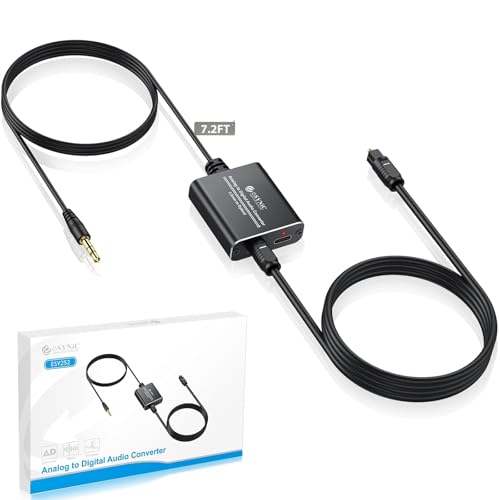 eSynic Portable 3.5mm to SPDIF Adapter-Built-in
|
9.2/10 | Buy |
 192KHz HDMI ARC to Optical Audio Adapter
|
8.6/10 | Buy | |
 192KHz Unidirectional HDMI ARC/eARC to 2 RCA Audio
|
8.3/10 | Buy |
Read the Back Panel Before Buying Anything
Your projector’s rear and side panels tell you almost everything. A jack labeled Audio Out, Line Out, or marked with a headphone symbol is an analog output. An optical or SPDIF port is a digital output, and an HDMI port labeled ARC can send sound back to an audio device. If none of these appear, Bluetooth may be the only route.
The soundbar side is usually easier to read. Common inputs are optical, HDMI ARC, AUX, and Bluetooth. Matching one output to one input gives you the simplest connection, and every other approach is a workaround.
A Quick Decision Path
If the projector has an analog out and the soundbar has AUX, use a 3.5mm cable. If the projector has an analog out and the soundbar has only optical, you need an analog-to-digital converter. If the projector has optical out and the soundbar has optical in, a plain optical cable does the job.
If the projector has no audio output at all, look into Bluetooth or splitting the audio earlier in the chain. Some people send the source device’s audio straight to the soundbar and use the projector only for the picture. That route depends on the source and soundbar having compatible ports.
Keep the direction of each adapter in mind. Converters are not usually two-way, and the wrong direction produces silence. Read the listing’s compatibility notes carefully.
Which Adapter Fits Which Situation
Analog Out to Optical In
The eSynic Portable 3.5mm to SPDIF Adapter-Built-in listing targets a projector or computer with a headphone-style jack feeding a soundbar that has only optical input. It states a built-in 3.5mm cable of 1.2 meters and an included optical cable of 1 meter. The listing says the converter is USB powered, with no power adapter included.
It also describes two-channel PCM output at 48kHz and says it doesn’t convert Dolby Digital, DTS, or AC-3, because those are already digital formats. In plain terms, you get stereo sound, not surround. The listing further says it is not a digital-to-analog converter, so it can’t send an optical signal to an analog speaker.
For a typical living room, stereo through a soundbar is a big improvement over projector speakers. If you want surround from a streaming source, you would need a digital path that preserves the format. That is where HDMI audio features enter the picture.
HDMI ARC Adapters and Where They Apply
The IHTHER HDMI ARC to Optical Audio Adapter listing converts ARC audio from a TV’s HDMI ARC port into optical. It lists support for PCM, LPCM, Dolby 5.1, and DTS 5.1, and says the soundbar must support the surround format used. It adds that it works with ARC rather than eARC, doesn’t support LG TVs, and has no CEC.
The Adoreen listing is a cable that converts ARC or eARC audio to analog RCA left and right outputs. It says it is limited to PCM or LPCM two-channel audio, needs USB power, and doesn’t decode Dolby Digital or DTS. It also says it isn’t compatible with ordinary HDMI ports, game consoles, or set-top boxes.
Both products are described for TV ARC ports. Unless your projector has an HDMI port labeled ARC that outputs audio, they likely don’t apply. Check the projector manual and port labels before ordering.
Making the Connection
Wired Setup in Order
Turn everything off. Connect the cable or adapter from the projector’s output to the soundbar’s input, and plug in USB power if the adapter needs it. Then power on the soundbar, select the matching input, and power on the projector.
Set the projector’s audio output mode if the menu has one, since some projectors default to the internal speaker. If the projector has a PCM or stereo option, choose it for converters that expect two-channel audio. Start the volume low and raise it slowly.
Play a video with spoken dialogue, then one with music. Listen for hiss, crackle, or hum, and compare the balance between voices and effects. If a problem appears, move on to the checks below.
Wireless Setup With Bluetooth
Bluetooth is the cable-free option. Put the soundbar in pairing mode, find it in the projector’s Bluetooth menu, and select it. Confirm the projector is sending audio out rather than acting as a speaker.
Wireless audio can arrive a fraction of a second late, which makes lips and voices drift apart. A low-latency mode on the soundbar sometimes helps. Otherwise a wired link is the reliable fix.
Pairing can also drop when the soundbar is used with another device. If it reconnects to your phone, you may need to disconnect that device first. Keep the soundbar close to the projector for a steady link.
Stereo, Surround, and What Your Soundbar Expects
Matching the Audio Format to the Gear
Most projector audio outputs carry plain two-channel stereo, and that is what every converter in the listings handles best. Surround formats such as Dolby Digital and DTS are already digital, so an analog-to-digital converter can’t create them from a headphone jack. If you want true surround, the digital path has to carry it from the source all the way to a soundbar that can decode it.
The IHTHER listing says the soundbar must itself support Dolby Audio or DTS when those formats are used. That is a useful reminder that the soundbar is part of the chain, not only the adapter. A basic soundbar may accept the signal and still play it as stereo.
For most movie nights through a projector, stereo into a decent soundbar is a clear improvement. Treat surround as a bonus rather than a requirement. Choose the simplest format that your whole chain supports.
Volume Control and Remotes
Volume handling differs by connection type. Some HDMI paths let the TV or projector remote control the soundbar through CEC, while others don’t. The IHTHER listing says volume control from the TV remote may not work over optical and that you should use the soundbar’s remote instead.
The Adoreen listing says RCA output volume can be adjusted through CEC via the TV remote, which is a different behavior. These are manufacturer statements about TV setups, so results with a projector may vary. Plan to use the soundbar’s own remote as the default.
A fixed-level output, common on analog jacks labeled line out, means the projector’s volume knob may do nothing. In that case set the projector volume to a sensible level and use the soundbar for all changes. Variable outputs, such as a headphone-style jack, respond to both.
When the Projector Has No Audio Output
Some compact projectors have an HDMI input, a USB port, and nothing else for sound. In that case, route the audio before it reaches the projector. A streaming stick or laptop often has its own audio output, or a Bluetooth link, that can feed the soundbar directly.
The projector then handles only the picture, and the soundbar handles the sound. The catch is that you may lose automatic volume and input switching, so you’ll manage two devices. For a dedicated movie corner, it’s a workable arrangement.
Another option is a soundbar with its own HDMI input and passthrough, where the source connects to the soundbar and the soundbar connects to the projector. This keeps picture and sound in sync and tends to simplify the remote situation. Confirm that your soundbar actually offers HDMI passthrough, and note the HDMI version it supports.
Troubleshooting Silence, Hum, and Lag
No Sound
Check power first: the soundbar, the projector, and any adapter. The eSynic, IHTHER, and Adoreen listings all describe USB power for their devices, and the Adoreen listing says it won’t work without it. Then confirm the soundbar is on the matching input.
Next, look at the source’s audio format. The eSynic and Adoreen listings both say to use PCM or stereo, and an unsupported surround format can leave you with no sound. If your projector offers an audio format setting, try PCM.
If it is still silent, swap the cable and test the parts separately. Plug headphones into the projector’s audio out to confirm it sends a signal, then play a phone through the soundbar. Whichever test fails shows where the fault lies.
Hum, Distortion, and Echo
A steady hum often comes from a ground loop or a cable running next to power wiring. Move the audio cable away from power cords or plug into a different outlet. Distortion may mean the projector’s output is too high, so lower it and raise the soundbar’s volume.
Echo means two sets of speakers are playing the same audio. Mute or disable the projector’s internal speaker if the menu allows. The delay between them is what makes it sound doubled.
Picture and Sound Out of Sync
Lip-sync trouble is most common on Bluetooth, and sometimes with HDMI audio extractors. Try a wired link, or enable the audio delay setting on the projector or soundbar. A small adjustment usually brings dialogue back in line.
If the delay only shows up in one app, the app itself may be to blame. Test with another video source before changing hardware. That saves you from replacing a part that works.
Placement and Safety
Place the soundbar close to the screen so voices seem to come from the picture, and keep it unblocked so the sound isn’t muffled. Don’t push the projector against a wall or stack equipment around it, because its vents need clearance. Let the projector cool before you move or unplug it.
Use cable clips so nothing crosses a walkway, and use the mount hardware the manufacturer specifies for ceiling projectors. A qualified installer is a sensible choice for overhead work. Never look into the projector lens while it is on.
The practical sequence is simple: read the ports, pick the matching cable or converter, set the audio format to stereo or PCM, and test with dialogue. ARC adapters are TV-focused, so confirm your projector has the right port before ordering one. If the ports don’t match, a basic analog-to-optical converter or Bluetooth may be the easiest path.
About the author
Most projector frustration is a setup problem: wrong throw distance, a bracket in the wrong spot, a cable that will not carry the signal. I write step by step guides for mounting, placement, connecting laptops, phones, and streaming sticks, and getting a straight, sharp picture. I like checklists and I try to say what to measure before you drill anything. My notes follow the site's review methods: research-based comparison, not lab testing.