
How to Connect Epson Projector to Laptop? Quick Setup Guide
Learn how to connect epson projector to laptop using HDMI or wireless mirroring, plus quick fixes for no-signal screens. Updated for October 2026.
 By Marcus Bell
Updated
By Marcus Bell
Updated

A laptop screen that stays black while the projector shows a “No Signal” message is one of the most common setup headaches in a meeting room or living room. The fix is usually simpler than it looks, and it almost always comes down to the cable, the input source, and one display shortcut on the laptop.
This guide explains how to connect epson projector to laptop setups using the connection types the listed models support, then covers wireless mirroring and the usual troubleshooting steps. The products below are Epson 3LCD models with HDMI inputs, and one of them also lists wireless options. Use the steps as a general routine, and check your projector’s own manual for exact button names and menu labels.
A little preparation saves most of the frustration. Knowing your laptop’s video port, the projector’s input count, and the distance between them lets you pick the right cable on the first try. The sections below also cover no-signal screens, stretched pictures, and missing sound, since those are the problems people hit right after the cable goes in.
| Award | Product | Best Projector Reviews Score About Best Projector Reviews ScoreBest Projector Reviews Score is a comparison aid based on available product information, not a hands-on testing result. Read our review methods. | |
|---|---|---|---|
| Best Overall |
 Epson Home Cinema 1100 3-Chip 3LCD 1080p Home
|
9.1/10 | Buy |
| Best Budget |
 Epson EpiqVision Flex CO-W01 Portable Projector
|
8.4/10 | Buy |
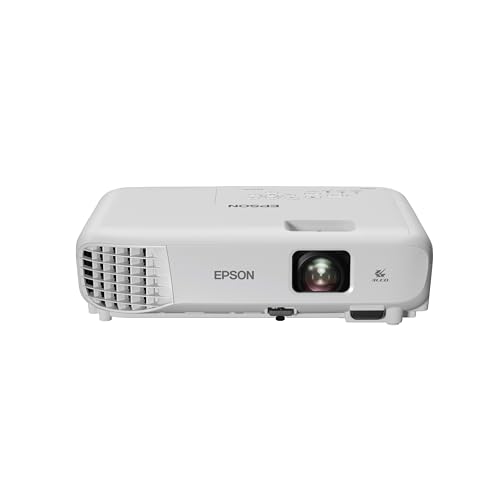 Epson EX3290 3-Chip 3LCD WXGA Projector
|
8.3/10 | Buy |
Getting a Laptop Picture onto an Epson Projector
The short answer: plug an HDMI cable from the laptop into the projector’s HDMI port, switch the projector to that input, and then tell the laptop to send its picture to the second display. If the laptop has no full-size HDMI port, an adapter bridges the gap. Wireless mirroring is an option only on models that list it, and it depends on the laptop’s operating system.
Every Epson model covered here lists at least one HDMI port, so a wired connection is the dependable starting point. Wireless can come later, once you’ve confirmed the projector and laptop work together on a cable. That order also helps with troubleshooting, because a wired connection removes network problems from the equation.
Match the laptop’s video output to the projector’s inputs
Start by looking at the side of the laptop. Many current laptops have a full-size HDMI port, while thinner models may only offer USB-C or a mini connector. A USB-C port can carry video on many laptops, but not all of them, so check the laptop’s specs before buying an adapter.
The projector side is easier to read. The Epson Home Cinema 1100 3-Chip 3LCD 1080p Home lists two HDMI ports and a USB port that works as a power source for streaming devices. The Epson EpiqVision Flex CO-W01 Portable Projector lists a single HDMI port, and the Epson EX3290 3-Chip 3LCD WXGA Projector lists two.
Cable length matters more than most people expect. A short cable keeps the laptop close to the projector, which is handy on a table mount. A longer cable lets you sit at the back of a room, but a very long or cheap cable can cause flicker or dropouts, so buy one that suits the distance instead of the cheapest option.
If the ports don’t match, an adapter is the usual answer, such as USB-C to HDMI or mini to full-size HDMI. Choose an adapter that lists video output support for your laptop type, and keep the adapter and cable in the same bag as the projector. Forgetting the adapter is the most common reason a presentation starts late.
A wired connection order that avoids a blank screen
Power the projector on first and let it finish its startup. Then plug one end of the HDMI cable into the projector and the other into the laptop. Doing it in this order gives the laptop a ready display to detect, which can prevent the handshake problems that show up when a source is already running.
Next, press the source or input button on the remote or control panel and choose the HDMI port you used. If the projector has two HDMI ports, the label on the port must match the input you select. Picking HDMI 1 while the cable sits in HDMI 2 is a surprisingly common reason for a “No Signal” message.
If the picture doesn’t appear within a few seconds, leave the cable in place and move to the laptop’s display settings. Unplugging and replugging repeatedly rarely helps, and it can just make the laptop re-detect the same problem.
Windows and Mac settings once the cable is in
On a Windows laptop, the Windows key plus P opens the projection menu. The Duplicate option shows the same picture on both screens, which suits presentations and movies. Extend gives the projector its own desktop, which works well when you want slides on the wall and notes on the laptop.
On a Mac, open Displays in System Settings and choose either mirroring or an extended desktop. If the projector doesn’t appear, the Detect Displays option can prompt the Mac to look again. Resolution choice matters here: the Epson Home Cinema 1100 3-Chip 3LCD 1080p Home is a 1080p model, and the Epson EX3290 3-Chip 3LCD WXGA Projector is a WXGA model, so a laptop set far above the projector’s native resolution gets scaled down.
Mirror mode is the safer default for a first test, because whatever appears on the laptop appears on the wall. Extended mode can confuse a first-time user when the mouse seems to disappear off the edge of the screen. If that happens, drag the pointer back and switch to Duplicate until you are comfortable.
Set the laptop to a resolution the projector handles well, and the text on slides will look cleaner. If words look soft or oddly sized, the resolution mismatch is the first thing to check.
Wireless mirroring on the models that list it
The Home Cinema 1100 listing mentions Apple AirPlay for iPhone, iPad, or Mac, plus Miracast screen mirroring for a Windows PC. That makes it the most flexible of the three for a laptop without a wired connection. The listing’s footnotes attach conditions to these features, so read them before counting on a particular laptop.
Wireless mirroring depends on the laptop’s own support. A Windows laptop needs Miracast support in its wireless hardware and drivers, and a Mac uses AirPlay. Older laptops may not offer either, and in that case a cable is the fallback.
Wireless adds a small delay compared with HDMI, which usually doesn’t matter for slides or photos. For fast action video or anything where audio and picture must line up exactly, a cable is the safer choice. The EpiqVision Flex and EX3290 listings, as supplied, do not describe built-in wireless mirroring, so plan on HDMI for those two.
Keep power and cable handling simple. Plug the projector into a wall outlet or a surge-protected strip, route the HDMI cable where nobody will trip over it, and avoid yanking the connector out by the cable. If the projector sits on a ceiling mount, ask a qualified installer to handle the hardware and follow the manufacturer’s weight guidance.
When the screen stays black, stretched, or tilted
A black screen with a “No Signal” message points to the input, the cable, or the laptop’s output setting. Check the source selection first, then try a different HDMI cable or port, then use the Windows plus P shortcut or the Mac display settings. Restarting the laptop with the projector already connected can also help it pick up the display.
Flicker, sparkles, or a picture that cuts in and out often point to a loose or low-quality cable. Reseat both ends firmly, avoid sharp bends, and try a shorter cable if you can. A different laptop port can also help, since some adapters behave better on one port than another.
A picture that looks stretched or cropped usually means the aspect ratio setting doesn’t match the content. Most projectors offer a few aspect options in the menu. The EX3290 listing describes a WXGA widescreen image, and a laptop sending a different aspect ratio may show bars at the sides or top.
A trapezoid-shaped image means the projector is angled toward the screen. The EX3290 listing mentions a built-in picture skew sensor that analyzes the picture and corrects the vertical keystone to help square the image. Other models may rely on manual adjustment or on moving the projector, so check the manual. Keystone correction can slightly soften the picture, so placing the projector square to the screen is still the better fix.
When nothing works, isolate one variable at a time. Try another HDMI cable, then another laptop if you have one, then a different projector input. Whichever swap fixes the picture tells you which part was at fault, and it avoids changing five things at once.
Sound, brightness, and the room
HDMI carries audio along with video, but the laptop may still be sending sound to its own speakers. In Windows, open the sound output list and choose the projector. On a Mac, pick the projector in the sound output settings. The listings for all three Epson models mention a built-in speaker.
Brightness matters for the room. The Home Cinema 1100 lists 3,400 lumens, the EpiqVision Flex lists 3,000 lumens, and the EX3290 lists 4,000 lumens, all as manufacturer-stated color and white brightness. More lumens generally help when lights are on, but ratings depend on how they are measured, so darkening the room remains the easiest upgrade to any picture.
Let the projector cool before you unplug it or pack it away, and keep the vents clear. Blocked vents can trigger heat warnings, and a laptop placed on a soft surface next to a vent can cause its own heat problems.
Choosing among the three Epson options for laptop use
The Epson EpiqVision Flex CO-W01 Portable Projector suits someone who carries a projector between rooms. The listing highlights a compact, lightweight design that fits in a backpack, and it lists a built-in speaker and one HDMI port. A traveler who connects a single laptop will likely be fine with that.
The Epson EX3290 3-Chip 3LCD WXGA Projector is aimed at groups and well-lit rooms. The listing cites 4,000 lumens, two HDMI ports, and widescreen WXGA resolution for presentations and spreadsheets. It is also listed as renewed, so buyers should read the condition details and warranty terms on the product page.
The Epson Home Cinema 1100 3-Chip 3LCD 1080p Home fits a home setup where the laptop is one of several sources. It lists 1080p resolution, two HDMI ports, and wireless streaming options. Someone who wants to switch between a laptop, a streaming stick, and a game console without swapping cables may like that flexibility.
Before you commit to any setup, check the connection you’ll use every day. Confirm the laptop’s port type, the projector’s input count, and the distance between the two. A five-minute cable test beats discovering a missing adapter right before a meeting or movie night.
About the author
Most projector frustration is a setup problem: wrong throw distance, a bracket in the wrong spot, a cable that will not carry the signal. I write step by step guides for mounting, placement, connecting laptops, phones, and streaming sticks, and getting a straight, sharp picture. I like checklists and I try to say what to measure before you drill anything. My notes follow the site's review methods: research-based comparison, not lab testing.