
How to Connect a Laptop to Projector: Wired and Wireless
Match your laptop's ports to the projector's inputs. See how to connect a laptop to projector with wired and wireless options in October 2026.
 By Marcus Bell
Updated
By Marcus Bell
Updated

A thin laptop with two USB-C ports and a projector that only has a VGA input is a surprisingly common standoff. The picture will not appear until the laptop’s output and the projector’s input speak the same language, and a cable that fits the plug is not always enough. That puzzle is exactly what how to connect a laptop to projector comes down to in practice.
The easiest way to solve it is to start with the ports your laptop actually has, then choose the path that reaches the projector with the fewest conversions. This guide is research-based and draws on published specifications and manufacturer notes for the adapters and wireless dongles listed below, not on hands-on bench testing. It covers wired adapters, wireless display dongles, display settings, and the fixes for a blank or silent connection, so you can pick one route and get on with the meeting or movie.
| Award | Product | Best Projector Reviews Score About Best Projector Reviews ScoreBest Projector Reviews Score is a comparison aid based on available product information, not a hands-on testing result. Read our review methods. | |
|---|---|---|---|
| Best Overall |
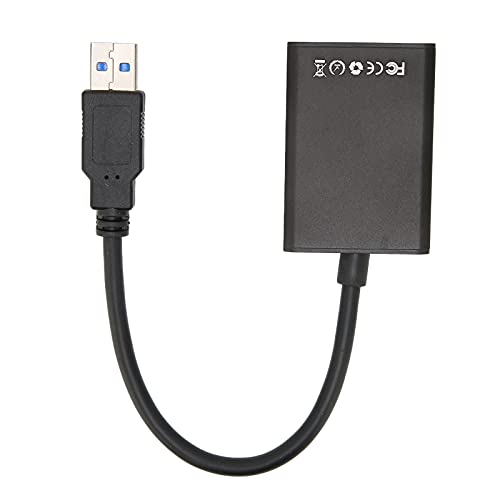 SparkFeng USB 3.0 to HDMI Adapter
|
8.9/10 | Buy |
| Best Premium |
 XEME 4K Wireless HDMI Display Dongle Adapter
|
8.9/10 | Buy |
| Best Budget |
 PrismSync DisplayPort to VGA Adapter for Laptop
|
8.6/10 | Buy |
| Best Value |
 BENFEI VGA to HDMI Cable with Audio
|
8.6/10 | Buy |
 Tbest USB3.0 to VGA Converter
|
8.4/10 | Buy | |
 Tbest USB3.0 to VGA Converter
|
8.0/10 | Buy | |
 SmartSee Anycast HD Wireless Display Adapter WiFi
|
8.0/10 | Buy |
Choosing a Path Based on the Ports Your Laptop Has
Look at the edges of the laptop and match what you see to one of three situations: a full-size HDMI port, a USB port only, or an older VGA port. Each leads to a different answer, and a wireless route sits alongside all three. Reading the projector’s input panel at the same time keeps you from buying a cable that fits one end but not the other.
If the Laptop Has HDMI and the Projector Does Too
This is the simplest case. A standard HDMI cable carries both video and audio, so one cable is all you need and no adapter is involved. Plug it in, switch the projector to the matching input, and the laptop should detect the display on its own. If it does not, unplug and replug the cable, then wait a few seconds for the projector to sync.
If the laptop uses a smaller HDMI port or a USB-C port with video output, a matching cable or a USB-C to HDMI adapter is the sensible fix. Check that the USB-C port supports video, because not every port does. The manual or the small icon next to the port usually tells you.
If the Laptop Has Only USB Ports
A USB display adapter can add a video output when the laptop lacks one. The SparkFeng USB 3.0 to HDMI Adapter is listed as a USB 3.0 to HDMI adapter that streams 1920×1080 video without drivers, and it supports mirror or extend modes. The listing describes it as a bridge for computers without an HDMI port.
The Tbest USB3.0 to VGA Converter and its white version, the Tbest USB3.0 to VGA Converter, convert USB 3.0 to VGA for older projectors. Both listings quote up to 5Gbps data transfer, a maximum 1920×1080 at 60Hz, plug and play use with a built-in driver, and display modes for expansion, repetition, and main and auxiliary switching. The white version also states that no external power is needed.
USB adapters rely on the laptop’s processor to draw part of the picture, so heavy video playback may be less smooth than a direct port. For slides and documents, that is rarely a problem. For fast video, a native HDMI output is usually the better path.
If the Laptop Has DisplayPort or VGA
The PrismSync DisplayPort to VGA Adapter for Laptop converts a DisplayPort source to a VGA display, with output listed at 1920×1080 at 60Hz and no drivers. The conversion is one-way and the listing says it carries no audio. That makes it a fit for office presentations and classrooms where the projector is older.
Going the other direction, the BENFEI VGA to HDMI Cable with Audio takes a VGA source and sends it to an HDMI monitor or projector. The listing says it supports up to 1920×1080 at 60Hz and adds audio through an integrated USB cable. It is also one-way, so it will not work from an HDMI source to a VGA display.
These details show why direction matters. A converter labeled for one direction cannot be reversed by flipping it around. Check which end is the source and which is the display before you buy.
Cable Length, Power, and Warranty Details
Small details in the listings can decide a purchase. The BENFEI cable is listed at 6 feet with gold plated connectors and molded strain relief, and it carries an 18-month warranty. The PrismSync adapter also lists an 18-month warranty, along with a pocket-sized body meant for a laptop bag.
Power is the other thing to check. The XEME listing notes that a charging plug is not included in the package, so you will need a USB power source near the projector. The SmartSee dongle also draws power over USB, which many projectors supply from a spare port, though some do not, and a small wall adapter solves that.
Skipping the Cable with a Wireless Display Dongle
Wireless adapters plug into the projector and receive a screen mirror from the laptop. They remove the cable run, which helps when the projector is mounted far from the podium. They add a setup step and a few compatibility limits.
What the Listings Say About Setup
The XEME 4K Wireless HDMI Display Dongle Adapter is listed as plug and play with no driver or app, using dual-band 2.4G and 5G WiFi. It supports Miracast, AirPlay, and DLNA, and its listing names iOS 7.0 and later, Android 5.0 and later, Mac, and Windows. It also provides mirror and extended modes, and it supports horizontal and vertical screens.
The SmartSee Anycast HD Wireless Display Adapter WiFi follows a similar plug, connect, and mirror pattern, with the dongle powered by a USB cable and a WiFi antenna. Its listing says it has AirPlay mode for iOS and Miracast mode for Android and Windows, with a button to switch between them. The listing also says it supports Mac, iOS 9.0 and later, Android 5.0 and later, and Windows 10 through those protocols.
Wireless works best when the laptop and dongle are close and the WiFi environment is not crowded, and a clear line between them helps too. In a busy office or conference center, interference can cause stutter. A wired link remains the safer choice for an important presentation.
Limits to Know Before Relying on Wireless
The SmartSee listing lists notable limits. It says it does not support Google Pixel or Motorola devices, that Android and Windows devices must support Miracast, and that encrypted apps such as Netflix and Amazon Video are not compatible. It also says movies must be unencrypted.
That last point catches people out. Streaming services that use copy protection often show a black screen when mirrored through a dongle. If movie night is the plan, a wired HDMI connection with the player’s own output is more reliable.
Latency is another factor. Wireless mirroring adds a small delay, which is not an issue for slides but can be annoying for video or anything interactive. Test with the content you intend to show, and note which screen resolution and mode worked so you can repeat it quickly.
Setting Up the Display Once the Link Is Made
After the physical or wireless link is ready, the laptop has to send the picture where you want it. Most of the remaining trouble sits in the display settings and not in the hardware. A short check here saves a lot of cable swapping.
Mirror or Extend
On Windows, pressing the Windows key and P opens a menu to duplicate, extend, or use only the second screen, and the SparkFeng listing mentions this shortcut. Duplicate is simple and shows the projector exactly what the laptop shows. Extend gives you a second desktop, which suits speaker notes on one screen and slides on the other.
On a Mac, display settings let you mirror or arrange displays. If the projector is not detected, use the detect or scan option, or try a different port. Set the resolution to match the projector for the sharpest text.
Resolution deserves a second look when a USB adapter is involved. The USB listings quote a maximum of 1920×1080, so a laptop set to a higher output may be scaled down or refuse to sync. Dropping the projector’s display to 1920×1080 or lower in the settings usually clears a flickering or blank picture.
Refresh rate can matter too. The adapters above quote 60Hz, which suits slides and most video. If the picture stutters, check that the laptop is not set to a different rate for the external display.
Fixing No Signal, a Cropped Image, or No Sound
For no signal, confirm the projector’s input source, reseat connectors, and try the adapter in another USB port. For a cropped or stretched image, set the laptop’s resolution to the projector’s recommended resolution and check the projector’s aspect ratio option. For missing sound, remember that VGA paths carry no audio.
Choose the projector or the HDMI device as the output in the laptop’s sound settings, or connect a 3.5 mm cable or Bluetooth speaker. The BENFEI listing explains that its USB audio is configured from the Sound menu in Windows. Check that menu if the sound stays on the laptop speakers.
Keystone problems come from the projector’s position. Place it level and square to the screen if you can, and use keystone correction for small adjustments only. Large corrections can soften the picture.
Getting a Clear Picture on the Wall
A connected laptop still needs a good projected image. Distance from the screen sets the size, so move the projector forward or back until the picture fills the screen, then use the zoom control for small changes. Check the projector manual for the throw distance range, because it differs from model to model.
Focus on small text, such as a spreadsheet or the laptop’s taskbar, since sharp text is easier to judge than a photo. If the left and right sides focus differently, the projector is probably angled to the screen. Squaring it up fixes that more cleanly than any menu setting.
Room light changes how the picture looks. A bright room washes out the image, no matter how clean the connection is. Lower the lights near the screen or close blinds, and slides with dark backgrounds will be easier to read.
Which Option Fits Which Situation
For a classroom with an older projector, a USB to VGA converter or a DisplayPort to VGA adapter often covers the need at a low cost. For a modern projector and a laptop with no HDMI port, a USB to HDMI adapter or a USB-C video cable is the cleaner route. For a mounted projector far from the podium, a wireless dongle can spare a long cable.
Whichever path you choose, test it before the audience arrives, using the same laptop, cables, and power adapter you plan to bring on the day. Bring a backup adapter if the presentation matters, and keep the adapters in the laptop bag. A few minutes of preparation makes the connection feel easy when it counts.
About the author
Most projector frustration is a setup problem: wrong throw distance, a bracket in the wrong spot, a cable that will not carry the signal. I write step by step guides for mounting, placement, connecting laptops, phones, and streaming sticks, and getting a straight, sharp picture. I like checklists and I try to say what to measure before you drill anything. My notes follow the site's review methods: research-based comparison, not lab testing.