
How to Connect Projector to Laptop: Ports, Cables, Fixes
Learn how to connect projector to laptop with HDMI, USB-C, VGA, and wireless options, plus display settings and fixes for October 2026.
 By Marcus Bell
Updated
By Marcus Bell
Updated

Five minutes before a presentation, the laptop is open, the projector is humming, and the wall is still blue. The cable you grabbed doesn’t fit anything, or it fits and nothing shows up. That moment comes down to matching the ports on your laptop to the inputs on your projector, then telling the laptop where to send the picture.
This guide covers how to connect a projector to a laptop with HDMI, USB-C, VGA, and wireless options, then walks through the display settings that decide whether you mirror or extend your screen. It also lists the fixes for a blank screen, missing sound, and a picture that looks the wrong size. The advice draws on published product listings and standard setup practice, not hands-on testing, so check your own laptop and projector manuals for model-specific steps. A little preparation beforehand usually saves the most time, especially in a room you haven’t used before.
| Award | Product | Best Projector Reviews Score About Best Projector Reviews ScoreBest Projector Reviews Score is a comparison aid based on available product information, not a hands-on testing result. Read our review methods. | |
|---|---|---|---|
| Best Overall |
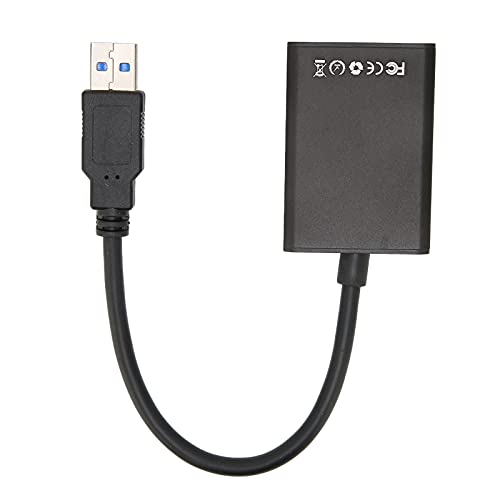 SparkFeng USB 3.0 to HDMI Adapter
|
8.9/10 | Buy |
| Best Premium |
 XEME 4K Wireless HDMI Display Dongle Adapter
|
8.9/10 | Buy |
| Best Value |
 BENFEI VGA to HDMI Cable with Audio
|
8.6/10 | Buy |
| Best Budget |
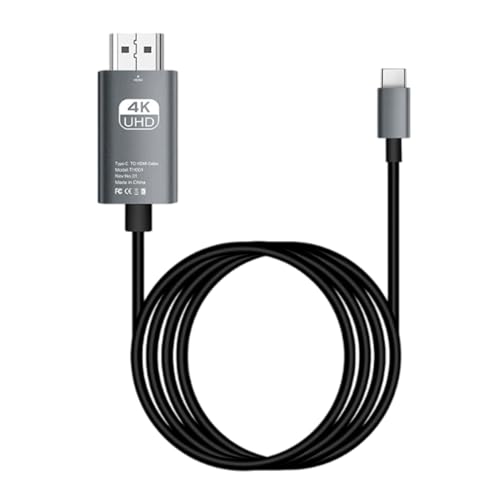 4K USB C to Cable - HDTV Video Adapter Converter
|
8.4/10 | Buy |
 Tbest USB3.0 to VGA Converter
|
8.4/10 | Buy | |
 Tbest USB3.0 to VGA Converter
|
8.0/10 | Buy | |
 SmartSee Anycast HD Wireless Display Adapter WiFi
|
8.0/10 | Buy |
From Laptop Port to Projector Input
Connecting the two comes down to three decisions: which port your laptop offers, which input your projector has, and whether you want a cable or a wireless link. Once the physical link is made, you still need the right input selected on the projector and the right display mode on the laptop. Most trouble comes from skipping one of those two last steps.
Read the Ports on Both Sides First
Look at the side of your laptop and the back or side of your projector. HDMI is the simplest match when both have it, and one HDMI cable carries picture and sound. If your laptop has only USB-C, check whether that port supports video output, since not every USB-C port does.
Older projectors, and some meeting-room units, still rely on VGA. VGA is an analog connection, so it needs a converter if your laptop has only HDMI or USB outputs. The BENFEI listing explains the direction clearly: it converts a VGA source to an HDMI display, and it does not work the other way around.
Write down what you find before you shop. A quick note such as “laptop: USB-C and USB-A, projector: HDMI and VGA” tells you exactly which cable or adapter you need. It also stops you from buying a converter that goes the wrong direction.
The Direct HDMI Connection
When both devices have HDMI, plug one end of the cable into the laptop and the other into the projector. Power on the projector, then use its remote or buttons to select the matching HDMI input. Most laptops detect the new display within a few seconds.
If the projector has several HDMI inputs, pick the one you plugged into. If nothing shows up, press the projector’s source or input button and cycle through the options. This single step fixes a large share of “no signal” problems.
Keep the cable as short as practical. Long runs can cause flicker or dropouts, especially on higher resolutions. If you need to reach a ceiling-mounted projector, use a cable rated for the distance and the resolution you plan to use.
USB-C and USB-A Adapters When the Laptop Lacks HDMI
A USB-C laptop often needs an adapter or a cable with an HDMI end. The generic 4K USB-C to HDMI cable in the data lists 4K at 60Hz and says it needs no extra software. As with phones, the laptop’s USB-C port has to support video output, and the listing doesn’t state a specific laptop compatibility list.
A laptop with only USB-A ports can still drive a projector through a USB display adapter. The SparkFeng USB 3.0 to HDMI Adapter listing describes a driver-free 1080p adapter that connects over USB 3.0, and it mentions switching between mirror and extend modes with Win+P. The Tbest USB3.0 to VGA Converter lists a 1920 by 1080 maximum at 60Hz and a built-in driver.
These USB adapters work by sending video over a data port, so they depend on the laptop’s USB speed and processing. They usually suit slides, documents, and ordinary video. Fast-moving games or demanding video work may not look as smooth.
VGA Projectors and Analog Signals
If the projector only has VGA, use a cable or adapter that matches your laptop. A laptop with a VGA port connects directly with a VGA cable, while one with HDMI needs an HDMI-to-VGA converter. The Tbest listing is a USB 3.0 to VGA converter rated at up to 1080p, which suits a laptop with USB but no video port.
VGA doesn’t carry sound. The BENFEI cable handles that with an integrated USB cable that adds audio, and its listing says you configure the output from the Sound menu in Windows. If you use VGA, plan for separate audio either way.
Analog signals can also look softer than digital ones, particularly on longer cables. Adjust the projector’s auto-sync or focus if the image looks fuzzy at the edges. A matching resolution on the laptop and projector usually gives the cleanest picture.
Going Wireless
Wireless adapters remove the cable at the cost of extra setup. The XEME 4K Wireless HDMI Display Dongle Adapter and the SmartSee Anycast HD Wireless Display Adapter WiFi both plug into the projector’s HDMI port and receive a signal from the laptop over Wi-Fi. They describe mirror and extend modes, and neither requires an app or driver according to the listings.
Check the limits before you rely on one. The SmartSee listing says it supports Windows 10, Mac, iOS, and Android through AirPlay, Miracast, and DLNA, but that Android and Windows devices must support Miracast, and it doesn’t support encrypted apps such as Netflix. It also says it doesn’t support Google Pixel or Motorola phones.
Wireless links add delay and depend on a stable signal. They work well for slides, photos, and casual video. For a high-stakes presentation, a cable is the safer backup.
Telling the Laptop to Use the Projector
Connecting the cable isn’t always enough, because the laptop has to be set to send an image. On Windows, the SparkFeng listing points to the Win+P shortcut for switching between display modes. The shortcut brings up options such as duplicate and extend.
Duplicate, also called mirror, shows the same picture on both screens, which is what you want for a presentation or a movie. Extend gives the projector its own separate desktop, so your notes can stay on the laptop while slides show on the wall. Choose the mode that matches your plan before you start.
On a Mac, the equivalent options sit in the system display settings. Look for the arrangement or mirroring controls there. If the projector isn’t listed, many systems have a button to detect displays.
Mirror or Extend: Choosing for the Task
Mirror mode is the safe default for a room full of people, because what you see on the laptop is what everyone else sees. It also makes it easy to spot problems, since both screens match. Extend mode earns its place in presentations where you want speaker notes or a timer in front of you only.
Extended desktops can confuse the first time. If a window disappears, it may be sitting on the projector side, so drag it back or switch to mirror mode. The XEME listing mentions both mirror and extended modes, and extended mode lets you do other things on the laptop once a video is playing.
Resolution, Scaling, and Audio
The laptop and projector should agree on a resolution. If the image is cut off or oddly sized, set the laptop’s display to the projector’s native resolution, which is listed in its manual. A mismatched setting can also create a fuzzy picture.
Audio often goes to the wrong place. HDMI usually carries sound, but the laptop may still be playing through its own speakers. Open the sound settings and choose the projector as the output, or use the projector’s audio-out port to feed external speakers.
With USB or VGA adapters that don’t carry sound, route audio separately. Use the laptop’s headphone jack, a Bluetooth speaker, or the dedicated audio path the adapter describes. A short test with a video clip confirms that picture and sound both work.
Volume is worth checking in two places. Both the laptop and the projector have their own controls, and a muted projector looks exactly like a broken connection. Raise the laptop volume first, then adjust the projector or external speaker to a comfortable level before the audience arrives.
When Nothing Appears
Start with the simplest checks. Confirm the projector is on the right input, reseat both ends of the cable, and make sure the adapter is firmly seated. Then try a different cable or port to rule out a failed part.
Next, check the laptop. Press the display shortcut, try duplicate mode, and unplug and reconnect the cable while the projector is on. If a USB adapter is involved, make sure its driver has finished installing and the port provides enough power.
If the picture flickers or drops out, shorten the cable or try a different one. For wireless, move the devices closer and reduce other wireless traffic. Restart both devices as a last step, since many display issues clear after a restart.
Setup Safety and Placement
Place the projector on a stable surface with clear airflow around the vents. Route cables so they’re not a trip hazard, and avoid pulling on connectors. Let the projector cool after use before you pack it away, and follow the manufacturer’s guidance for mounting.
If the projector hangs from the ceiling, have a qualified installer handle the mount and cable run. For a rented room, ask the venue which cable or adapter it provides. Bringing your own adapter for each of your laptop’s video outputs is a simple way to avoid surprises.
Picking the Right Connection for Your Situation
For a laptop and projector that both have HDMI, a plain cable is the simplest and most reliable route. For a thin laptop with USB-C, a USB-C to HDMI cable or adapter fills the gap. For an older VGA projector, a VGA converter plus a separate audio path will do the job.
Wireless adapters suit situations where cables are impractical, as long as you check the listed compatibility notes first. A wired fallback is still worth carrying. Whichever route you choose, keep a spare cable in your bag, test before your audience arrives, and confirm that the display mode is set the way you need it. A two-minute dry run in the actual room catches almost every problem in advance.
About the author
Most projector frustration is a setup problem: wrong throw distance, a bracket in the wrong spot, a cable that will not carry the signal. I write step by step guides for mounting, placement, connecting laptops, phones, and streaming sticks, and getting a straight, sharp picture. I like checklists and I try to say what to measure before you drill anything. My notes follow the site's review methods: research-based comparison, not lab testing.